
Developer Guide
This section is designed for developers and administrators involved in building BPMN models, publishing them to LDAS, and managing their execution. It provides guidance on how to configure BPMN models using Camunda Modeler, publish them to LDAS, and launch workflows effectively. It covers everything from defining tasks and events within the model to setting up workflow parameters, attachments, and custom identifiers.
Supported Tasks and Events
You can begin building your BPMN model using the supported tasks and events listed below. As you design the workflow, it's important to assign clear and meaningful names to each task and event to ensure readability and maintainability.
To make the most of this section, you should have foundational knowledge of BPMN concepts and experience working with Camunda Modeler. The content here builds on that understanding to guide users through the LDAS-specific steps for model configuration, publishing, and workflow execution.
- Send Task
- Receive Task
- Service Task
- Script Task
- Manual Task
- Business Rule Task
- Start Event
- End Event
- Timer Intermediate Catch Event
- Error Boundary Event
- Message Boundary Event
- Exclusive Gateway Event
Naming Convention and Variable Configuration
Inside the BPMN model file, process name has been defined and is mandatory for a model to be published in LDAS.
It is also essential that the Process name defined in the model file matches the model name given in the API while publishing the model.
NOTE:
- Model name is case insensitive in LDAS and space is not recommended to be used in the beginning or end of the model name. Using “/” in the model name is restricted.
- Avoid using “/” and “.” In Local and Process variable key name
While using Message Boundary Event, the modeller must ensure that the message provided unique for a model. It is important to ensure models are built such that exceptions and errors are handled properly. Furthermore, the modeller should design the model to allow proper completion of the workflow.
Additionally, when using a Receive Task and Message Intermediate Catch Event, both The Global Message Reference and the subscription correlation key must be defined. The correlation key can be either a static value or dynamic value, such as "correlationKey", or a default value, which is a combination of the workflow ID and the BPMN process ID, formatted as z_workflowId+ "_" + "Process_0riohzu" where "Process_0riohzu" represents the BPMN process Id of the model.

Receive task with Global message reference and default subscription correlation key
NOTE:
- The correlation key assigned for each task should be unique to ensure accurate identification.
- Avoid using “Version tag” when creating model.
- It is not recommended to use assert function with a variable in execution listener
Workflow Parameters and Attachments Configuration Details
When designing a BPMN model for LDAS, it's essential to configure key workflow metadata—such as sample details, experiment names, and file attachments—so they are properly surfaced during workflow execution. These details are displayed in LDAS under the Workflow Parameters and Attachment sections.
This information can be configured in mappingConfig while publishing a model. Mapping Config variables are typically defined as parameter while publishing a model. These variables can be dynamically updated during the task execution and the values of those variables are recorded in the workflow parameters upon task completion.
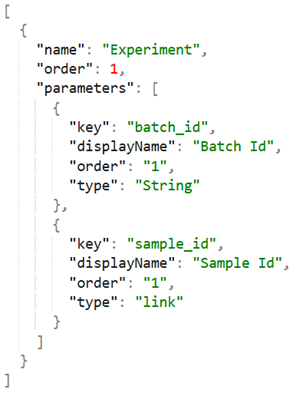
Sample mappingConfig format for workflow parameters
If there are files to be attached to a workflow for the end user, then it can be done by defining a variable named ‘Attachments’ within the mapping Config. Note that we have shown only two files in the image while more can be provided as per your business need.
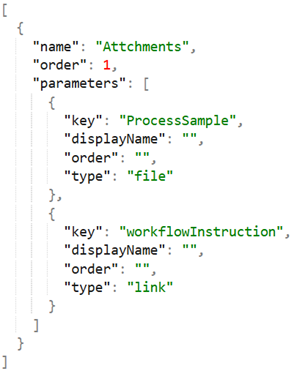
Sample mappingConfig format for attachments
Please refer the table below to understand the requirements for different field defined in the above two images for configuring workflow parameters and attachments.
| Required Fields | Definition |
|---|---|
| name |
For Workflow Parameter: Used for denoting the section name within the Workflow Parameters section in the LDAS user interface.
Note: Do not use "Attachments" as the section name here, as it is reserved for the Attachment section in LDAS workflows. For Attachments:This must be provided as “Attachments”, so that LDAS will know that the parameters defined within this mappingConfig has to be displayed in the attachment tab of the workflow in LDAS |
| order |
For Workflow Parameter: When there is multiple information (or sections) for a workflow to be displayed, this order is used to define the order in which, that information should be displayed within the Workflow Parameters tab present in the LDAS user interface
For Attachments: The order is recommended to be kept blank since this does not determine the order of the files in LDAS. |
| parameters |
For Workflow Parameter: Defines the different variables that are required to be displayed under this section within the Workflow Parameters tab section.
For Attachments: In case of Attachments, the most important parameter is the ‘key’ since the key defined in mappingConfig, will be verified against the Process Variable Name within the Camunda Modeler to check if they match and bring the file accordingly to be viewed in LDAS.
|
Publish BPMN model in LDAS
In LDAS, BPMN models can only be published through an API call, and this action is restricted to users who hold the Registered API User role. This role must be explicitly assigned within LDAS to enable access to the publishing endpoint. Using the URL provided in the table below, you can generate an authorization token and a refresh token to publish the model in LDAS.
| Field | Description |
|---|---|
| URL | <LDAS DNS>/api/user/authentication/external/user |
| Method | POST |
| Header | - |
| Authorization | - |
| Request parameters |
username – name of the user created in LDAS with “External API user” role password – encrypted password of the user. |
Details for generating authorization token and refresh token
Once the authorization token is generated, the model can be published in LDAS within any specific organization path using the details provided in the table below.
| Field | Description |
|---|---|
| URL | <LDAS DNS>/api /model/publish |
| Method | POST |
| Authorization | <the bearer token from the authorization endpoint> |
| Headers |
|
| Request Parameters |
|
Details for publishing the BPMN model in LDAS
When using the "publish model" API, ensure the model name matches the process name defined in the BPMN model. Duplicate model names are not allowed within the same path but are permitted in parallel paths.
In Camunda, the Process Definition Key is a unique identifier assigned to each BPMN model. It serves as a unique identifier used to launch and manage workflows, and it plays a critical role in how LDAS handles versioning and organizes models within an organization.
Hence, the Process Definition Key in the model file must be unique for each model. If you publish a model with the same Process Definition Key again in the same organization path, it will be treated as a version increment of the existing model. To view a sample request for the "publish model" API, refer to the figure below.
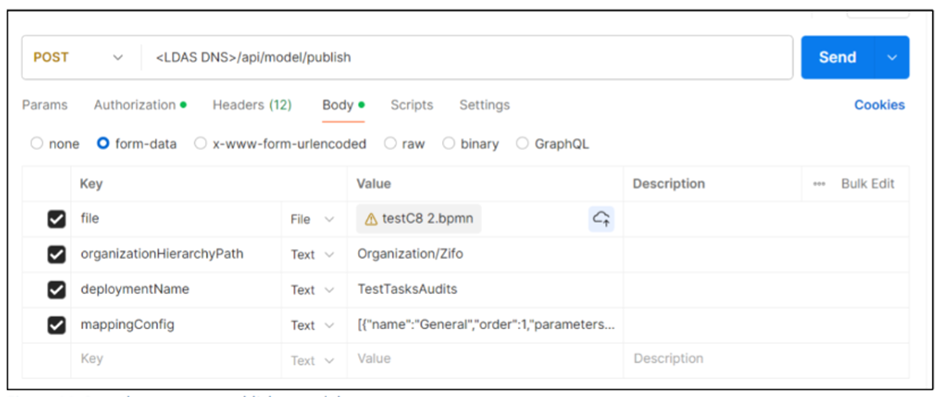
Sample request to publish a model
Once the model is successfully published within LDAS, the External API user will receive a success response. If the model publishing fails, the External API user will receive a failure response along with the reason for the failure.
The table below provides a list of the various response codes, along with the potential failure reasons and corresponding messages that can be expected for those reasons.
| Response Code | Reason | Message |
|---|---|---|
| 200 | Success | Model Published Successfully |
| 400 | Model name/ organization path name is empty | Invalid request, please provide the mandatory fields |
| 400 | File not sent | File or File Content should not be empty! |
| 400 | Unsupported file format | Could not parse BPMN process: File format not supported. |
| 400 | Invalid Organization path | Error occurred while getting Organization path id for Organization path name |
| 400 | Inactive Organization path | Given organization hierarchy path is not active |
| 400 | Model with same process ID in bpmn file is published again | Model with the same Process ID already exists |
| 400 | Process name is empty in model file | Process name in the bpmn file cannot be empty |
| 400 | Model name and process name in bpmn file mismatches | Model name does not match the process name in the bpmn file |
| 400 | Model name contains special char(/) | Model name cannot contain special character '/' |
| 400 | Model name exceeds 250 characters | Model name should not exceed 250 characters. |
| 400 | File name already exist in the Organization Path | Model name already exists. |
| 400 | Invalid MappingConfig | Invalid request, please provide a valid JSON for MappingConfig |
| 500 | Internal server Error | An unexpected error occurred. Please contact System Administrator |
Response while publishing the model.
Customizing Workflow Status
If you need to set any additional custom statuses for a workflow that is in progress, you can do so by defining them in the z_workflowStatus variable. Just make sure not to use any of the existing statuses listed in the table below within your custom statuses. The table below provides a mapping between LDAS workflow statuses and their corresponding Camunda statuses, helping clarify how workflow progress is interpreted across both systems.
| Workflow Status | Camunda Status |
|---|---|
| InProgress | Active |
| Completed | Completed |
| Suspended | Suspended |
| Cancelled | Externally terminated |
| Failed |
Internally terminated Active with incidents Externally terminated with incident |
You can add z_workflowStatus as a ‘Process Variable Name’ within the Output Parameters of a specific task. Once the task is completed, the workflow status will be updated based on the custom status you’ve defined in the Variable Assignment Value.
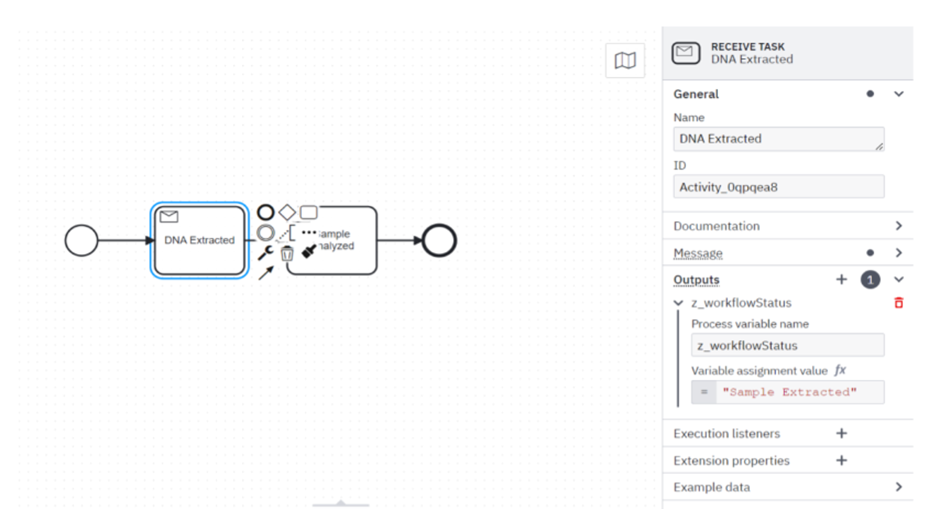
Configuring z_workflowStatus in output parameters
The custom statuses you’ve defined within the BPMN model will be displayed in the LDAS workflow as shown below.
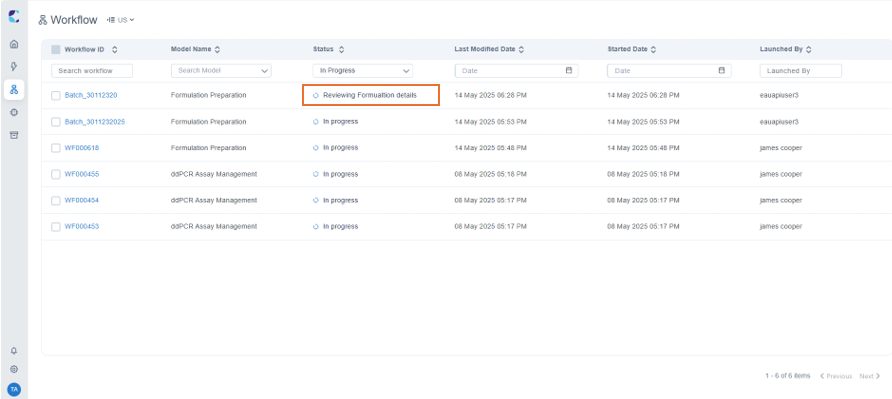
Configured custom status is now the status for the next task
Workflow Launch
Workflows can be launched either through an external system using API calls or directly from the Instrument module by triggering an instrument activity.
Workflows in LDAS are always launched using the latest version of the model. If a model is modified by adding, modifying, or deleting tasks and then republished with the same name and Process Definition Key, it is considered a new version of the old model. Therefore, workflows launched after this will use the latest version of the model. In order to edit and utilize it as a new model, it must be created as a new BPMN file with a unique Process Definition Key.
z_workflowId variable is used for defining what should be the workflow ID generated within LDAS. Whenever this variable is not given in the Launch workflow API request, LDAS will automatically generate a unique id for the workflows in the format WFnnnnnn.
Note:When a model is published in the parent organization path, workflows can be launched at that level or from any of its child organization paths.
The following details are required to launch a workflow using an API REST call:
| Field | Description |
|---|---|
| URL | <LDAS DNS>/api/automation/workflows/launch/start-process/modelname |
| Method | POST |
| Authorization | <the bearer token from the authorization endpoint> |
| Headers |
|
| Request Parameters |
|
Details for starting the workflow with the developed BPMN model using model name.
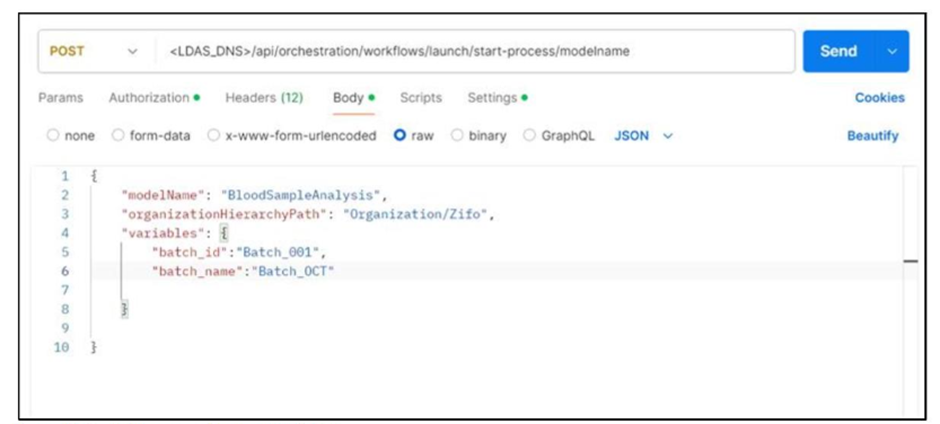
Sample request for Launch workflow
The table below provides the different response codes, along with the reasons for failure and the expected messages associated with each code.
| Response Code | Reason | Message |
|---|---|---|
| 200 | Success | Workflow launched successfully |
| 400 | Empty Model name | Model name is empty, Please provide Model name |
| 400 | Empty Organization path | Organization Path is empty, Please provide Organization Path |
| 400 | Invalid model name/Model not associated to the Organization path | Model does not exist in the given organization path |
| 400 | Invalid Organization path | Error occurred while getting Organization path id for Organization path name |
| 400 | Inactive Organization path | Given organization hierarchy path is not active |
| 400 | Value of z_workflowId is empty in the launch workflow request | Cannot launch workflow since the z_workflowId is empty |
| 400 | Duplicate Workflow ID is provided in the request | Cannot launch workflow since there already exists a workflow with workflowId |
| 500 | Internal server Error | An unexpected error occurred. Please contact System Administrator |
Response while launching the workflow
Complete Message events/Receive Task within a workflow
To complete a message task or message event within a workflow, the "complete message event/task" API is used. The message name must be specified in the API and must exactly match the name assigned to that task or event in the model (case-sensitive) to complete it.
| Field | Description |
|---|---|
| URL | <LDAS DNS>/api/orchestration/workflows/complete/message-event |
| Method | POST |
| Authorization | <the bearer token from the authorization endpoint> |
| Headers |
|
| Request Parameters |
|
Details for completing message task/event
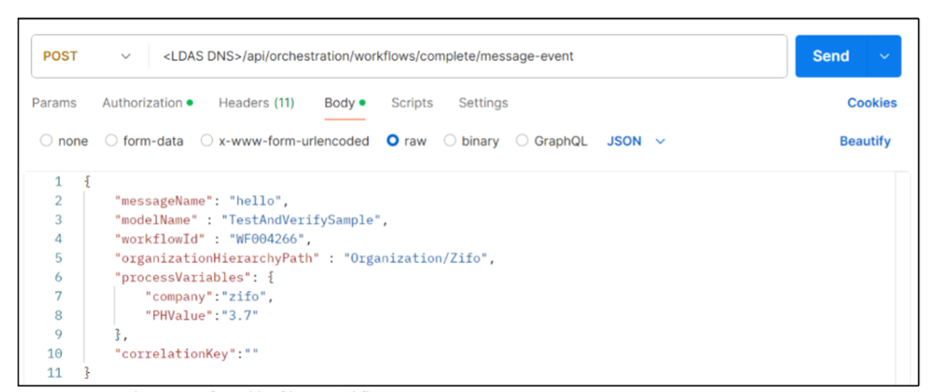
Sample request for complete message event
The table below provides the different response codes, along with the reasons for failure and the expected messages associated with each code.
| Response Code | Reason | Message |
|---|---|---|
| 200 | Success | Message event completed successfully |
| 400 | Empty Model name | Model name is empty, Please provide Model name |
| 400 | Empty Organization path | Organization Path is empty, Please provide Organization Path |
| 400 | Empty message | Message Name is empty, Please provide the Message Name |
| 400 | Message name or Corrleation Key not found in camunda | Invalid request - No subscription found for the given message name and correlation key |
| 400 | Empty Workflow Number | Workflow Id is empty, Please provide the Workflow Id |
| 400 | No model found in Organization path | Model does not exist in the given organization path |
| 400 | No workflow exists | Workflow does not exist in the given organization path |
| 400 | Invalid Organization path | Error occurred while getting Organization path id for Organization path name |
| 400 | Inactive Organization path | Given organization hierarchy path is not active |
| 500 | Internal server Error | An unexpected error occurred. Please contact System Administrator. |
Response while completing message task/event
Updated 7 months ago