
User Management
User Management involves defining and managing users, roles, and their access levels in a system ensuring that the right individuals have appropriate permissions and privileges within the system.
Permission
Permission is a specific right or ability, such as viewing, editing, or creating content. It is typically grouped within a role.
Role
Role is a collection of permissions that define what actions a user can perform in the system. Roles can be assigned to individual users or user groups, and are linked to specific organization path or folders. Each role comes with predefined permissions that govern access and functionality.
Subscription
The subscription determines which module — such as Archival, Instrument and Orchestration—are available to the user. By default, Platform module subscription is given, and others are based on subscription details mentioned in configuration file.
User
User refers to an individual who has access to LDAS. Each user typically has a unique account, identified by a username or email address, and is often assigned specific roles that dictate what they can see, do, or modify within the system.
User Group
User Group are collections of users who share common roles. Instead of assigning roles individually to each user, administrators can assign them to a user group, which then applies to all members of that group. This simplifies the management of roles, especially in large organizations, by ensuring consistency and making it easier to update access for multiple users simultaneously.
Admin Roles
Admin Roles generally refer to specific roles or permissions assigned to individuals in a system or organization that grant them administrative privileges. These roles typically include responsibilities such as managing user accounts, configuring system settings, and overseeing various aspects of system functionality.
Operational Roles
Operational Roles are specific roles assigned to users or groups that define the tasks they can perform within a particular organizational path. Roles for Instrument and Orchestration modules can be assigned here.
For example, an ‘Instrument Super User’ can manage and view instruments under the designated path, while an ‘Instrument Viewer’ role is limited to viewing permissions only.
Folder Roles
Folder Roles are used in the Archival module to grant users access to archival folders.
You can navigate to user management by clicking the Settings icon on the sidebar and select User Management icon from the list.
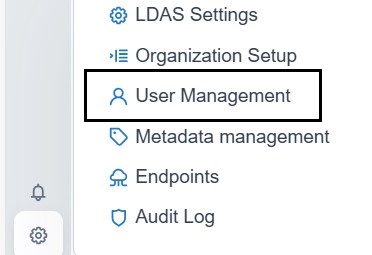
Settings
Creation of user groups
LDAS allows you to create user groups and assign users to specific groups. Each user can be a member of multiple groups.
| Section | Field Name | Description | Mandatory Fields |
|---|---|---|---|
| Group Info | Group Name | Provide the name given to the user group | Yes |
| Description | Provide the description given the user group | No | |
| Add Roles | Admin Roles | Assign the necessary admin role to the user | No |
| Operational Roles | Assign the necessary Operational role to the user | No | |
| Folder Roles | Assign the necessary Folder role to the user | No | |
| Add User | Add User | Provide the email address or search the name in the search bar and select the users that needs to be added in that group | No |
Steps to create user groups
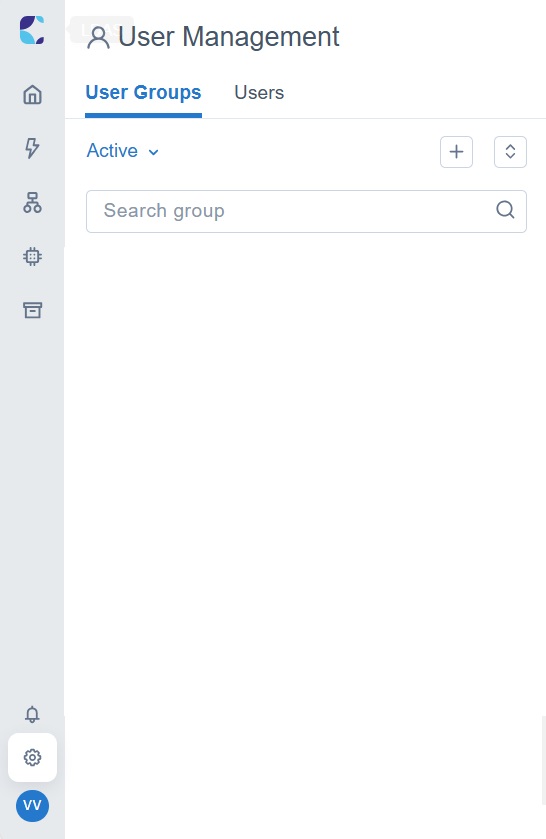
User Management page
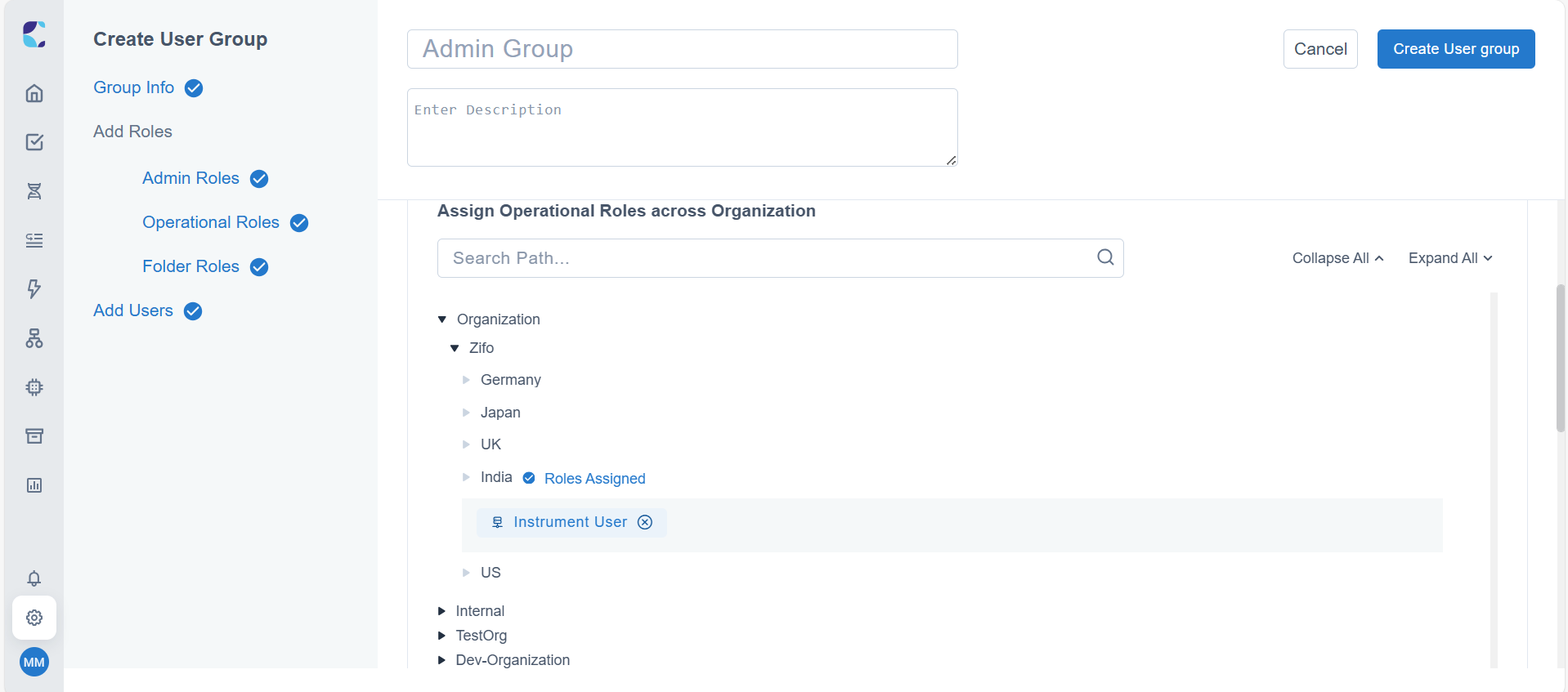
Create user group page – Assign operation roles across organization

Assign admin roles
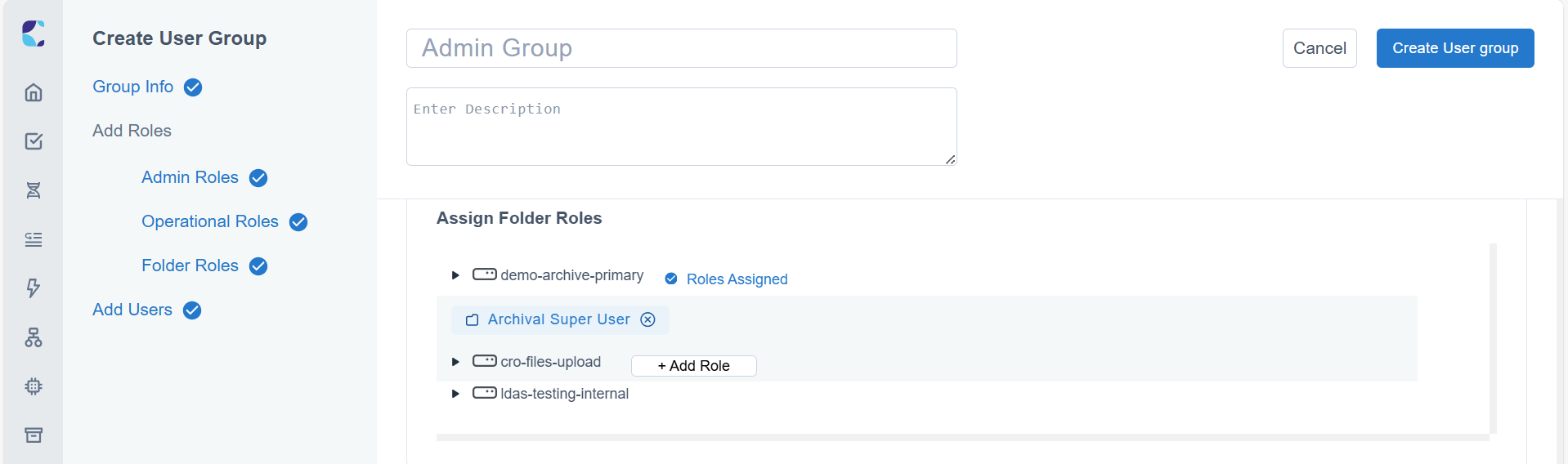
Assign Folder roles
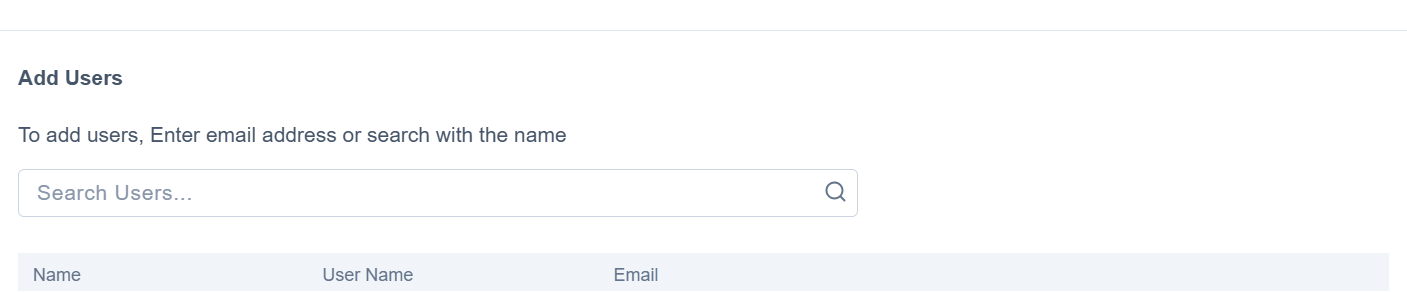
Add users
Once the above process completed, Click Create User group button and User group created successfully success toast message will be displayed.
Once created user group can be edited by clicking Edit User group the button which takes to the edit user group page. Status toggle button is present in the top right corner. If necessary, the status of the user group can be changed to Inactive or Active.
The user groups are filtered based on their active status and sorted by clicking the Sort icon .
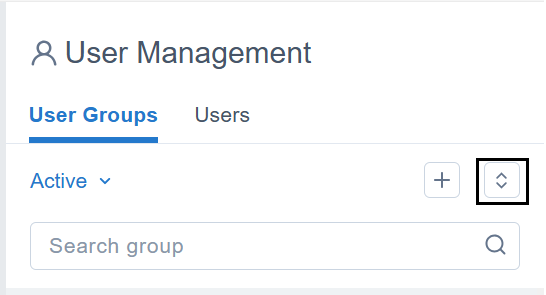
Sort Icon in User group
User group can be sorted based on the following:
- Recently Added
- Ascending (A to Z)
- Descending (A to Z)
Creation of Users
| Field Name | Description | Mandatory Fields |
|---|---|---|
| First Name | Provide the first name of the user | Yes |
| Last Name | Provide the last name of the user | Yes |
| User Name | Provide the username for logging in LDAS | Yes |
| Provide the email address as a unique user identifier and a communication channel for sending notifications and password recovery emails. | Yes | |
| Subscription | Check the subscriptions that the user can have access and use | Yes |
| Assign Groups | Provide the groups where the user belongs. The user can be in multiple groups. | No |
| Assign Roles | Assign Admin Roles, Operational Roles across the organization and Folder Roles for the user as per requirements. | No |
Steps to create user

User info and Subscriptions section
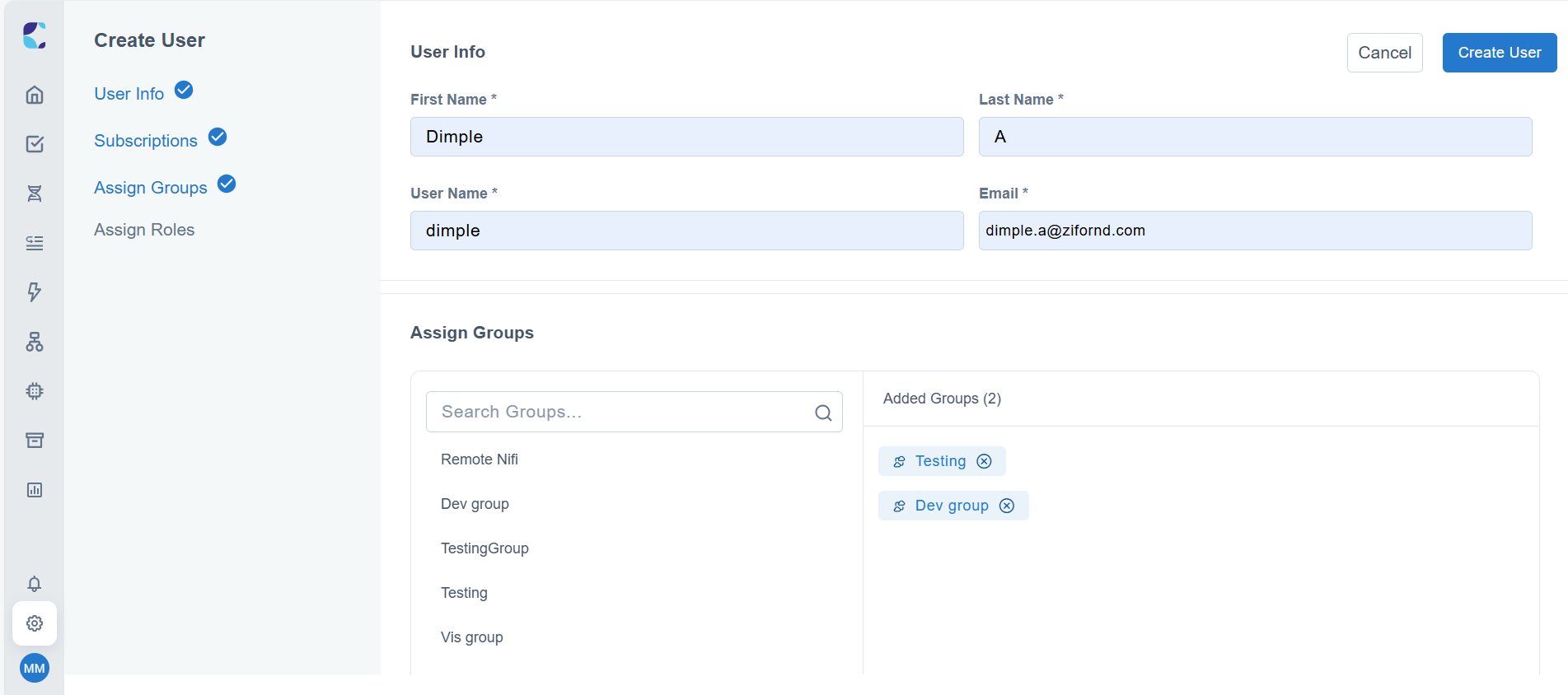
User info, Assign Groups and Added Groups.
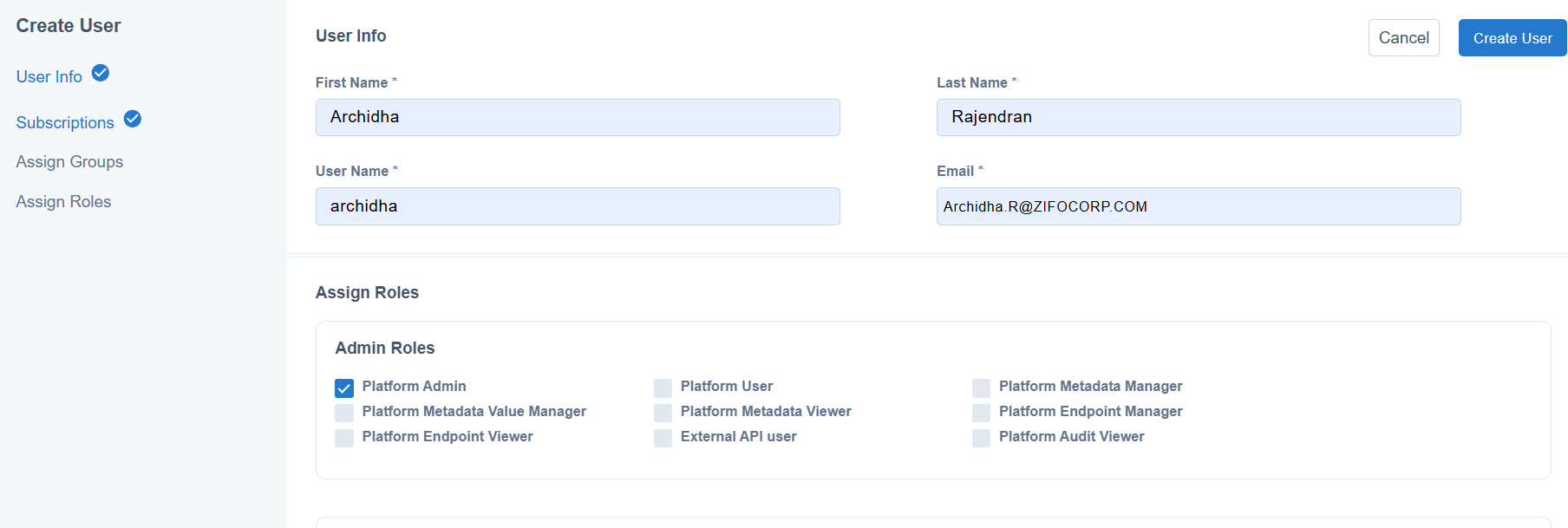
Assigning Admin Roles to User
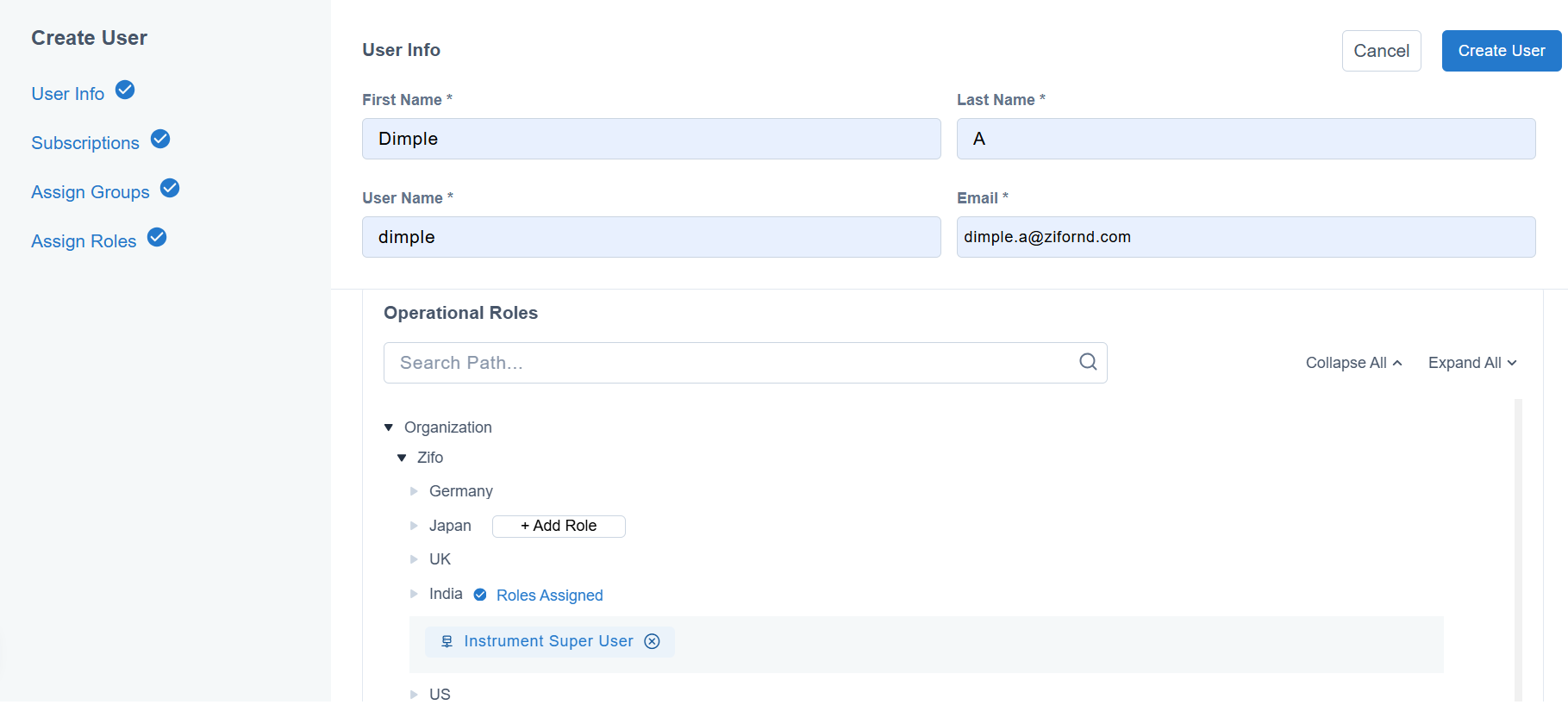
Assigning operational roles to User
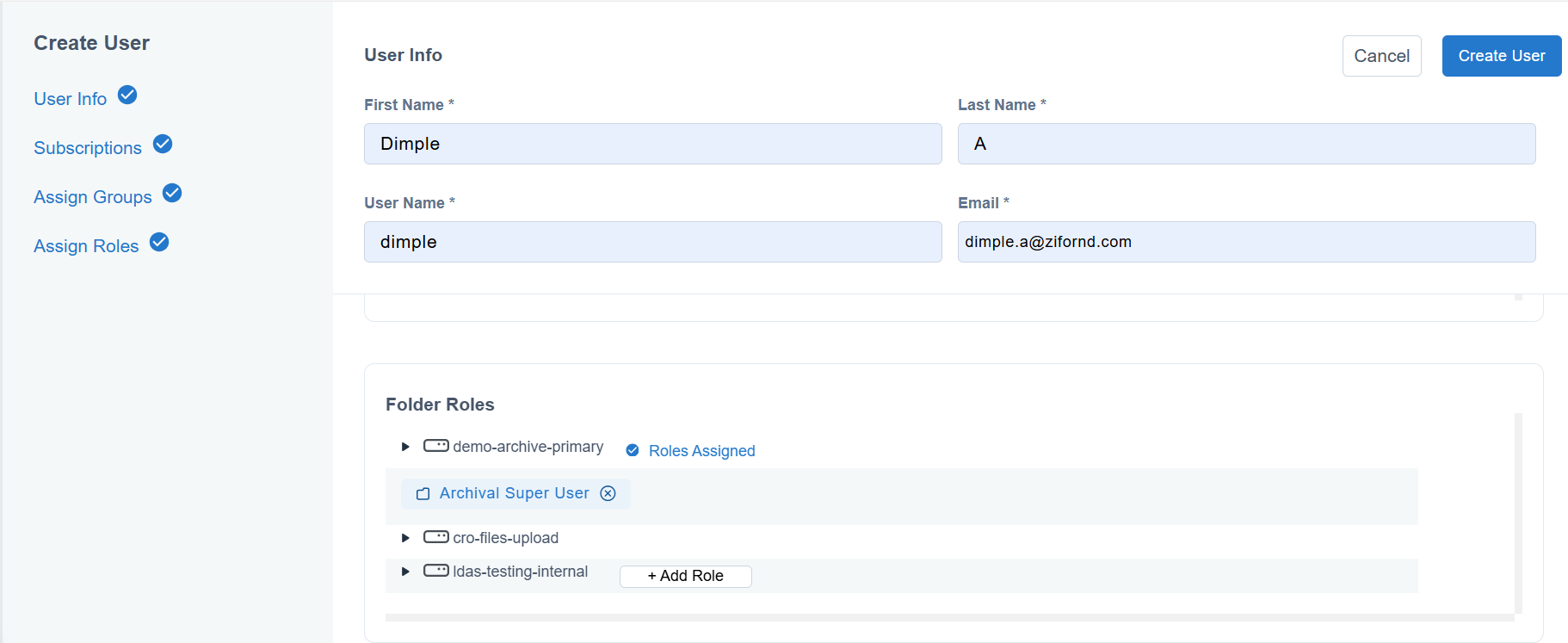
Assigning Folder Roles to User
Same as user group, user status can also be changed by toggling the status button on top right corner of the edit user page.
The users created can be sorted based on the following:
- Recently added
- Ascending (A to Z)
- Descending (Z to A)
The users can be filtered based on Groups and subscriptions that is assigned to them by clicking the Filter icon.
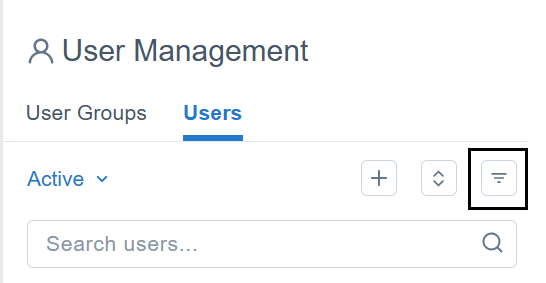
Filter icon in users page
Steps to Invite users - Internal Authentication [LDAP, Azure, OKTA]
LDAS supports internal authentication methods such as LDAP, Azure and OKTA. To invite users from your organization's Active Directory on the user creation page, enter their email address or username in the search field and press enter to see the list of users that can be invited to LDAS. Then, assign the appropriate subscription, groups, and roles—including Admin, Operational, and Folder Roles—as required.
Note:The user should have First Name, Last Name, UserName, and Email address to be invited into the LDAS, otherwise these users will not be listed in the dropdown. Also, when user mail ID contains any special characters other than '-', '_', '.' and '@' will not be displayed in the dropdown.
After inviting the user into LDAS, ‘First Name’, ‘Last Name’, ‘User Name’ and ‘Email’ cannot be edited.
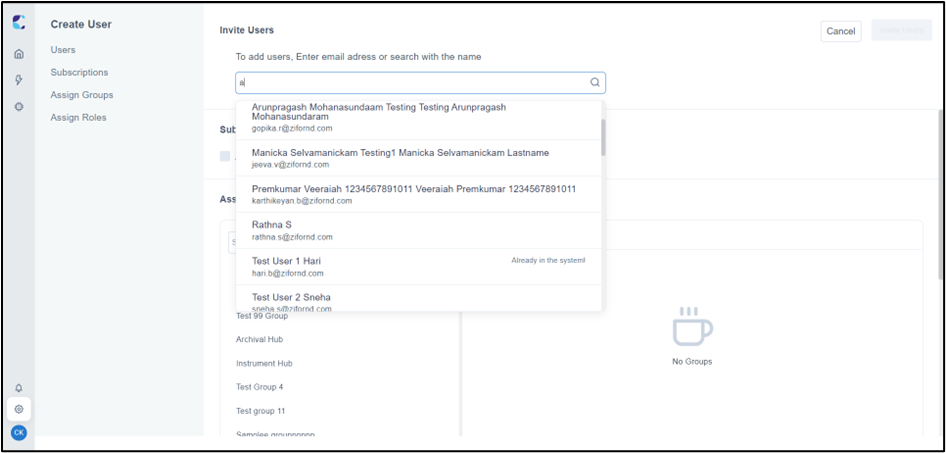
Invite User page in LDAS
Note:If a team within an organization is organized into a subgroup in Azure AD, users within that specific subgroup can be invited to access LDAS. To provide LDAS access to a new team member, they need to be added to the relevant Azure AD subgroup.
Roles and Permissions
Below are the Platform Admin roles along with their permissions:
Platform Admin
The following are the permissions for the role Platform Admin:
- Manage User
- View User
- Manage User Group
- View User Group
- Manage Organization Hierarchy Structure
- View Organization Hierarchy Structure
- Manage Organization Hierarchy Path
- View Organization Hierarchy Path
- Manage Platform Metadata
- View Platform Metadata
- Manage Platform Metadata Value
- Manage App Settings
- View App settings
- Manage Platform Endpoint
- View Platform Endpoint
- View Platform Audit
Platform User
The following are the permissions for the role Platform User:
- View user
- View User Group
- View Organization hierarchy structure
- View Organization hierarchy path
- View Platform Metadata
- View App settings
- View Platform Endpoint
- View Platform Audit
Platform Metadata Manager
The following are the permissions for the role Platform Metadata Manager:
- Manage Platform Metadata
- View Platform Metadata
Platform Metadata Value Manager
The following are the permissions for the role Platform Metadata Value Manager:
- View Platform Metadata
- Manage Platform Metadata value
Platform Metadata Viewer
The following are the permission for the role Platform Metadata Viewer:
- View Platform Metadata
Platform Endpoint Viewer
The following are the permission for the role Platform Endpoint Viewer:
- View Platform Endpoint
Platform Endpoint Manager
The following are the permissions for the role Platform Endpoint Manager:
- Manage Platform Endpoint
- View Platform Endpoint
External API User
The following are the permission for the role External API User:
- External API User
Platform Audit Viewer
The following are the permission for the role Platform Audit Viewer:
- View Platform Audit
Operational Roles
Instrument
Below are the Instrument roles along with their permissions:
Instrument Super User
The following are the permission for the role Instrument Super User:
- Manage Instrument Type
- View Instrument
- Manage Instrument
- Download Parser
- Download Mapper
- Deactivate Instrument
- Manage Processor
- View Activities
- Download Activities Files
- Re-run
- Duplicate Check
Instrument User
The following are the permissions for the role Instrument User:
- View Instrument
- Download Parser
- Download Mapper
- View Activities
- Download Activities Files
- Re-run
- Duplicate Check
Instrument Viewer
The following are the permissions for the role Instrument Viewer:
- View Instrument
- Download Parser
- Download Mapper
- View Activities
- Download Activities Files
- Re-run
- Duplicate Check
Reviewer
The following are the permissions for the role Reviewer:
- View Instrument
- Download Parser
- Download Mapper
- View Activities
- Download Activities Files
- Result Review
Instrument Metadata Manager
The following are the permissions for the role Instrument Metadata Manager:
- View Instrument
- View Activities
- Manage Instrument Metadata
Orchestration
Below are the Orchestration roles along with their permissions:
Workflow Admin
The following are the permissions for the role Workflow Admin:
- Cancel workflow
- Rerun workflow
- View workflow
Workflow User
The following are the permission for the role Workflow User:
- View workflow
Archival Folder Roles
Below are the Archival folder roles along with their permissions:
Archival User
The following are the permissions for the role Archival User:
- View Folder
- View Files
- View Metadata
- Manage Metadata
- Upload Files
- View Files Version History
- View File Audit
- View Folder Audit
Archival Viewer
The following are the permissions for the role Archival Viewer:
- View Folder
- View Files
- View Metadata
- View Files Version history
- View File Audit
- View Folder Audit
Archival Super User
The following are the permissions for the role Archival Super User:
- View Folder
- View Files
- View Metadata
- Create Folder
- Manage Metadata
- Restore Folder
- Legal Hold
- Upload Files
- View Files Version History
- View File Audit
- View Folder Audit
Updated 11 months ago