
User Guide
This section provides the user of orchestration module a view on how to manage the different orchestration workflows setup within LDAS. It also helps understand and track the different status of the workflows and different parameters within workflow.
View Workflow
To view your workflows, make sure you have either the 'Workflow user' or 'Workflow admin' role. Select the organization path where your workflows were launched in the workflow page
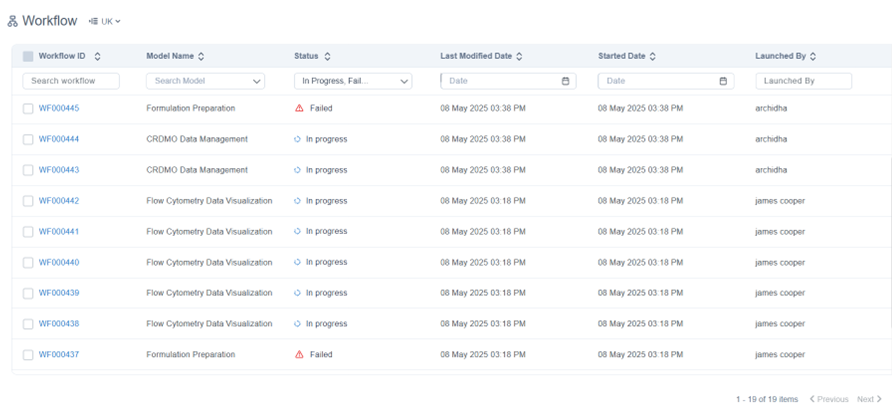
Workflow List
Workflow ID
In LDAS, every workflow is automatically given a unique ID called the Workflow ID. By default, this ID starts with "WF" followed by a six-digit number (like WF000001), which increases by one with each new workflow. You can either use this default ID or set up a custom Workflow ID. LDAS also allows you to link a field from an external system to serve as the Workflow ID, giving you flexibility to align it with your organization’s naming conventions.
Refer Workflow Launch section for more details on how this can be done when launching workflow.
Workflow Status
Default Status
The table below displays the workflow actions and their corresponding statuses.
| Status | Reason |
|---|---|
| In Progress | The workflow has been launched and is currently in progress. |
| Completed | The workflow has successfully completed all its tasks. |
| Failed | The workflow encountered a technical issue and has failed to complete. |
| Cancelled | The workflow has been cancelled by an administrator. |
If any task in the workflow fails, you can re-run the workflow. It will get initiated from the task of failure and continue the flow to get it completed.
Custom Status
In addition to the default status mentioned, you can also have a customized status for a workflow that is in progress.
For example, if a workflow involves sample preparation, you might include intermediate status like "DNA Extracted," "NGS Library Prepared," and "Sample Analysed" to provide clearer insights into the current stage of the workflow. In such cases, these specific statuses can be defined in the Camunda BPMN model before launching the workflow.
Check the Customizing Workflow Status section for more details on how this can be done.
Workflow Search, Filter, Sort
- You can filter and view workflows by model name, status (In Progress, Cancelled, Failed, Completed), or Started Date and Last modified Date using a date/time range.
- You can sort the workflow list by Workflow ID, Model Name, Status, or Started By in ascending or descending order, with Last Modified Date and Started Date sorted by default from recent to old.
- You can search for workflows in the list using either the Workflow ID or the name of the user who launched them.
Workflow Diagram
The model diagram and the status of each task present within your workflow can be viewed distinctively. For a specific workflow, you can view the following details:
- Model name and its version for which your workflow was initiated.
- The username of who initiated the workflow
- The last modified date of your workflow.
- The date and time on which your workflow was initiated
- The organizational hierarchy where the workflow was launched.
- The activity link from where the workflow was launched if the workflow is launched from Activities
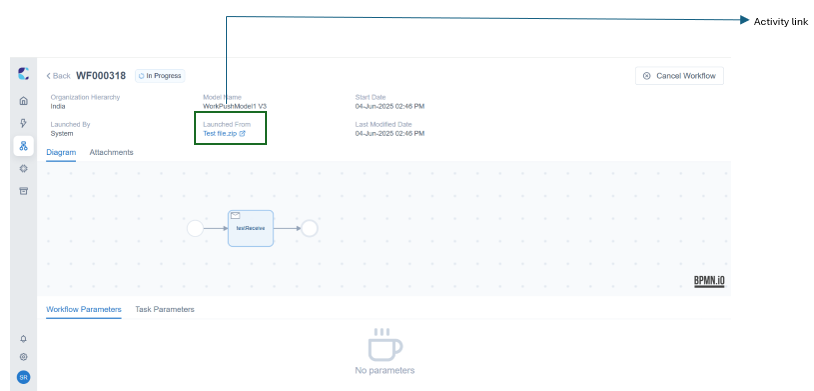
Workflow Details with activity link
NOTEYou can view the most recent status and details of the workflows by refreshing the workflow list.
Workflow Parameters
Workflow parameters are structured data elements associated with a workflow instance. They provide additional context and information that help understand the workflow better.
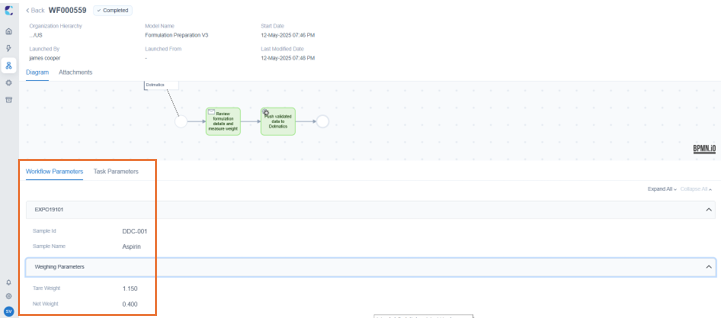
Workflow Parameters
- Any list of parameters that would be helpful for you, such as Batch ID, Sample ID, etc., can be logically grouped under different sections and viewed under the Workflow Parameters tab. These parameters can even be a link or a JSON.
- Once the corresponding task involving the parameter is completed, you can view the task-specific parameter under the Workflow Parameters tab. To view the workflow parameter, it must be configured in the mapping config while publishing the model.
Refer Workflow Parameters and Attachments Configuration Details for more information on setting up Workflow parameters.
Task Parameters
Like workflow parameters, each task within your workflow can have a set of parameters that might be essential for you to view. You can view the parameters for a particular task by clicking on the specific task in the workflow diagram. Task parameters can be viewed only for tasks that are In Progress or Completed.
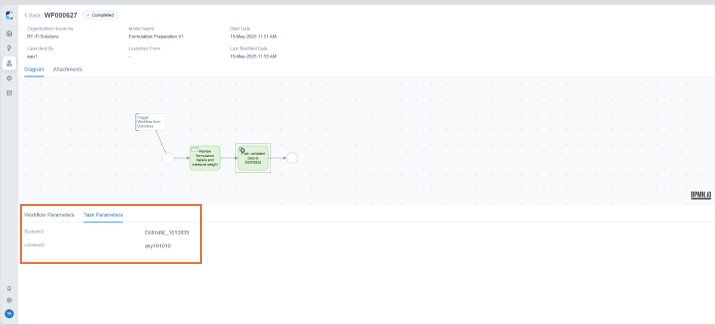
Task Parameters
View and Download Attachment
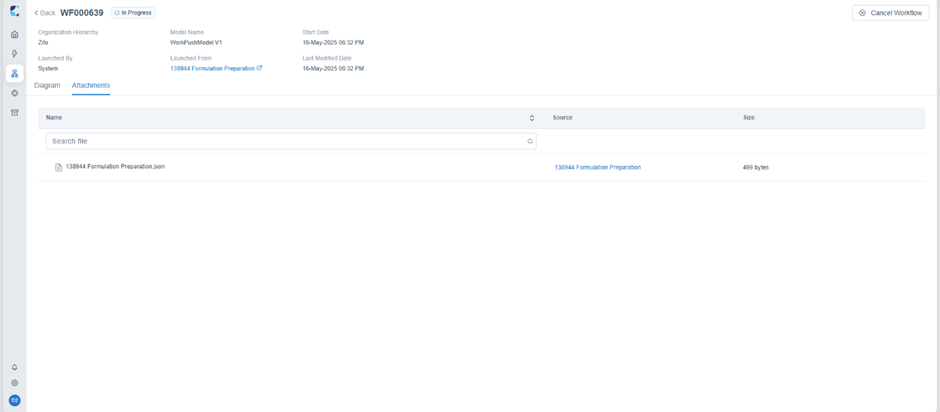
You can view the list of files associated with your workflow under the ‘Attachments’ section.
Attachments
Workflows in LDAS can include attached files that support the process. These might be detailed instructions, sample-related information, or files received from instruments or external systems. The specific files that need to be shown in the Attachments section are defined during the model setup. As a workflow user, you’ll be able to view and download these files for every workflow, making it easy to access all relevant information in one place. Refer Workflow Parameters and Attachments Configuration Details for configuring attachments.
Additionally, necessary files can be attached as links to redirect users to view the files. This is applicable only when the files are being attached from Instrument's activity.
In attachments section, you can view any instrument or parsed files as links in the workflow attachments, If the files are archived to the Internal Archive system. Clicking on these links will redirect you to the location where the files are stored.
Updated 11 months ago