
Admin Guide
Bucket Registration
Buckets are the core containers used in both primary and secondary storage within the LDAS system. Once a bucket is registered, you can start organizing your data by creating folders directly into it.
To begin the bucket registration process, ensure that the bucket is created in Minio/S3. Upon creation of bucket, users can register the bucket in LDAS archival system using a session token. The authentication API will provide an access token, which will be used by the user to access the Bucket registration API.
Authentication API
Username and encrypted password of a user should be given in the request.
| Field | Description |
|---|---|
| URL | <LDAS-DNS>/api/user/authentication/login |
| Method | POST |
| Request Parameters |
|
After generating the authorization, the access token should be utilized to authenticate the bucket registration and retrieve list of registered bucket APIs.
Bucket Registration API
To start the bucket registration process in the LDAS system, first register the secondary bucket. Once it's successfully registered, use the Get Registered Bucket List API to get its ID, which you'll need to link when registering the primary bucket. Below is a sample input for bucket registration.
| URL | <LDAS-DNS>/api/explorer/bucket/register |
| Method | POST |
| Authorization | <The bearer token from the authorization endpoint> |
| Request Parameters | |
|---|---|
| bucketName | The name for the bucket that is going to get registered in LDAS. |
| typeOfStorage | The value can be primary or secondary. |
| endpoint | The value is URL to access MinIO/S3 bucket. |
| accessKey | Access key to connect to the endpoint. Should be AES encoded. |
| secretKey | Secret key to connect to endpoint. Should be AES encoded. |
| metadataPrefix | It can be left as empty string. |
| port | The value is Port of the MinIO. It can be left empty string for S3. |
| isIAMAuth | The value is either true or false. It is true for the buckets created with S3 IAMAuth. |
| region | The value is region of the S3 IAMAuth buckets. |
NOTEMultiple secondary buckets can be registered allowing each secondary bucket to be mapped with single primary or multiple primary buckets. The primary and secondary buckets can belong to same or different object storage.
For example, A primary bucket on S3 and a secondary on MinIO. All folders from primary buckets are archived to the secondary bucket and restored back to their respective sources.
The table below provides the different response codes that can be encountered during bucket registration, along with reasons for failure and the expected messages. This can be used as a reference to understand and troubleshoot registration outcomes.
| Response code | Reason | Message |
|---|---|---|
| 200 | Bucket registered | Registered successfully |
| 400 | Mapping the bucket which is already associated | Bucket already mapped |
| 400 | Required request params are not provided | Invalid input: Please enter valid input |
| 400 | Mapping another secondary bucket while registering secondary bucket | Invalid Input |
| 400 | Storage type value other than primary/secondary | Invalid type of storage. Enter valid storage type |
| 400 | Registering the bucket name which already exists | Bucket already registered |
| 404 | Bucket not created in MinIO/S3 | Bucket does not exist |
| 500 | Invalid endpoint / accessKey / secretKey / region | Error occurred while connecting to bucket |
| 500 | Internal server Error | "An unexpected error occurred. Please contact System Administrator " |
Get Registered Bucket List API
After registering the secondary bucket, hit the Get Registered Bucket API to see all the registered bucket details. From the response, get the “bucketId” of the respective secondary bucket which will be used in mapping the bucket while registering the primary bucket.
| Field | Description |
|---|---|
| URL | <LDAS - DNS>/api/explorer/bucket/list/registered |
| Method | GET |
| Authorization | <the bearer token from the authorization endpoint> |
To access folders and files stored within the archival module, users must have one of the roles defined within LDAS, based on the level of access required.
| Permissions | Roles | |||
|---|---|---|---|---|
| Archival Viewer | Archival User | Folder Admin | Archival Super User | |
| View Folder | ✔ | ✔ | ✔ | ✔ |
| View Files | ✔ | ✔ | ✔ | |
| View Metadata | ✔ | ✔ | ✔ | ✔ |
| Create Folder | ✔ | ✔ | ||
| Manage Metadata | ✔ | ✔ | ✔ | |
| Restore Folder | ✔ | |||
| Legal Hold | ✔ | |||
| Upload Files | ✔ | |||
| View Files Version History | ✔ | ✔ | ✔ | |
| View File Audit | ✔ | ✔ | ✔ | |
| View Folder Audit | ✔ | ✔ | ✔ | ✔ |
| Assign Archival Roles | ✔ | |||
| Unlock File/Folder | ✔ | |||
Access to File/Folders
Roles can be assigned to folders in primary storage by Folder Admin and Platform Admin. When a role is assigned to a folder, the corresponding permissions apply to all child folders, regardless of their state or location (primary/secondary). Similarly, if a permission is removed from the parent folder, it will be removed from all child folders, regardless of their state or location.
Folder Configuration
Create Folder
- To create a folder, you must have 'Folder Admin' or 'Archival Super User' privileges.
- Navigate to the location in primary storage where you want to create a new folder. Then, use the menu option and select New Folder to create the folder.
NOTEOnce a folder is created, its name cannot be edited.
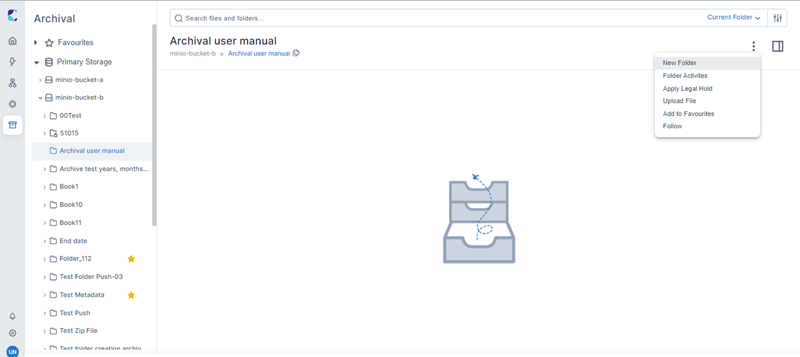
Creating a new folder in primary storage
NOTEThe folder path cannot exceed 1024 characters due to limitations set by Object Storage (S3/Minio). For example, if a folder path such as Folder1/Folder2/Folder3/.../Folder113/ reaches this limit, no additional folders can be created under Folder113, and files cannot be uploaded to Folder113.
- For the Folder Name, ensure that the name complies with the naming restrictions. Specify valid End Date, Archival Period, and Retention Period to determine the folder's phases. To learn how to set up an Archival policy, please refer to the Archival Policy Configuration section.
NOTEIf no archival policy values are specified for a folder, it will inherit the archival policy from its parent folder. If no archival policy is defined for any of its parent folders, archival and retention actions will not be applied, allowing the folder to be retained indefinitely in primary storage.
- Define the metadata keys and their corresponding values for the folder in the User Defined section.
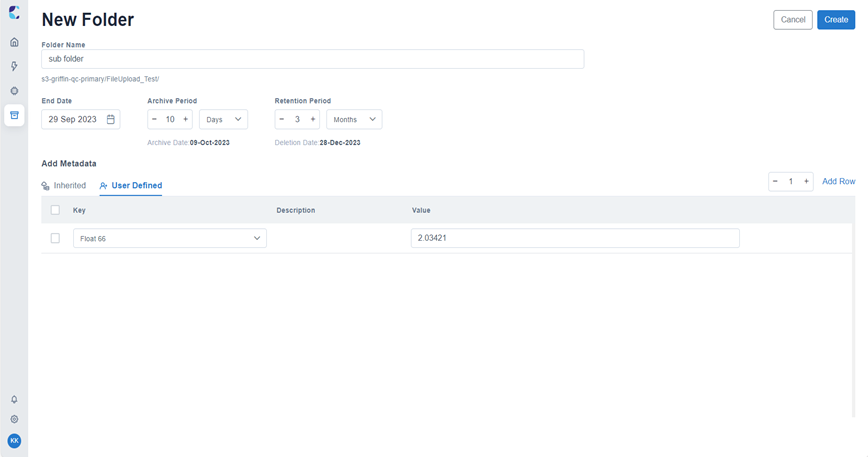
Entering folder properties during folder creation
- Click the Create button to complete the process. Upon successful folder creation, a confirmation message will be displayed.
NOTEIn the left navigation panel (folder tree), you can view the first 50 folders at each level. To see all files and folders within a folder, navigate to the file explorer page.
Naming Restrictions
- Folder names should be no longer than 246 characters.
- The characters ., /, :, , and % are not allowed in folder names.
Archival Policy Configuration
You can configure archival policies at the folder level by specifying the End Date, Archival Period, Retention Period, and Restore Period, while the system automatically calculates the Archive Date, Deletion Date, and Restoration End Date based on these values. All subfolders and files inherit the parent folder’s policy, which you can modify as long as the folder remains in primary storage.
End Date
You can set the End Date to the past, present, or future at the parent folder and any child folders. However, the End Date of a child folder cannot be set to a date later than that of its parent folder.
Example:
In Program 1, you may have two projects, such as Project A and Project B. The end date can be set at the Program 1 level, assigning the same end date to both projects. Alternatively, you can set an earlier end date specifically for Project B if needed.
Archival Period
Archival period can be defined in terms of days, weeks, months, or years.
In Archival, the calculation of weeks, months, and years in terms of days is as follows:
- 1 week = 7 days
- 1 month = 30 days
- 1 year = 365 days
NOTEIt is recommended to assign longer archival periods to frequently accessed and referenced folders, ensuring they remain in higher performance primary storage for extended durations.
Retention Period
The Retention Period defines how long an archived folder should remain in secondary storage before permanent deletion. You can set this period in terms of months or years.
Archival Date
Based on the provided End Date and Archival Period, LDAS calculates the Archival Date of a folder as 'End Date + Archival Period.' Once the Archival Date is reached, the folder and all its child folders will be moved from primary storage to secondary storage in the next archival schedular run after the archival period.
For each instance of LDAS, there is a configured frequency at which folders and their child folders are moved to secondary storage if their Archival Date has passed before this frequency.
To restrict archival actions and prevent any edits, a file or folder can be placed on legal hold, which also applies to all its associated child folders and files until the legal hold is lifted.
NOTETypically, the archival scheduler runs on a weekly or monthly basis, depending on your chosen settings.
Example
If a folder has an 'End Date' of June 23, 2023, an 'Archival Period' of 1 month, and a 'Retention Period' of 2 months, it will move from primary to secondary storage during the fixed frequency run that occurs after the completion of the Archival Date, which is July 23, 2023.
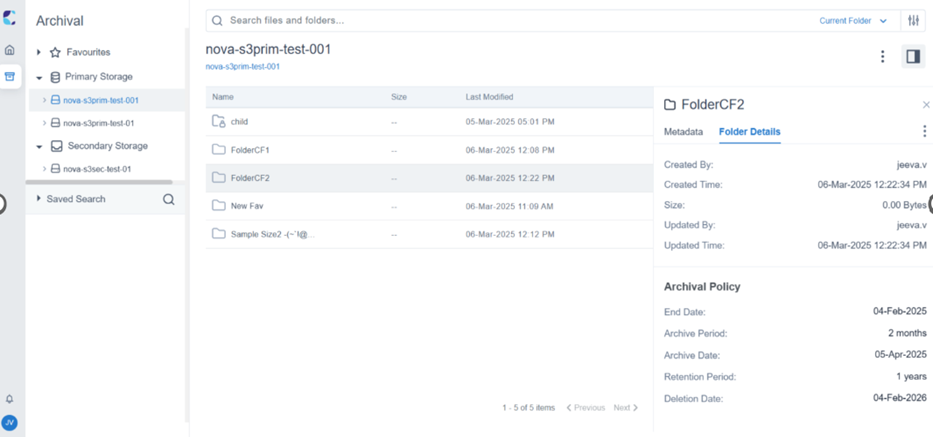
End date and Archival Period set for a folder
After archival, a system-defined metadata key 'Previous Bucket Name' will appear in the side panel. This key contains information about the primary container to which the folder belonged before it was archived.
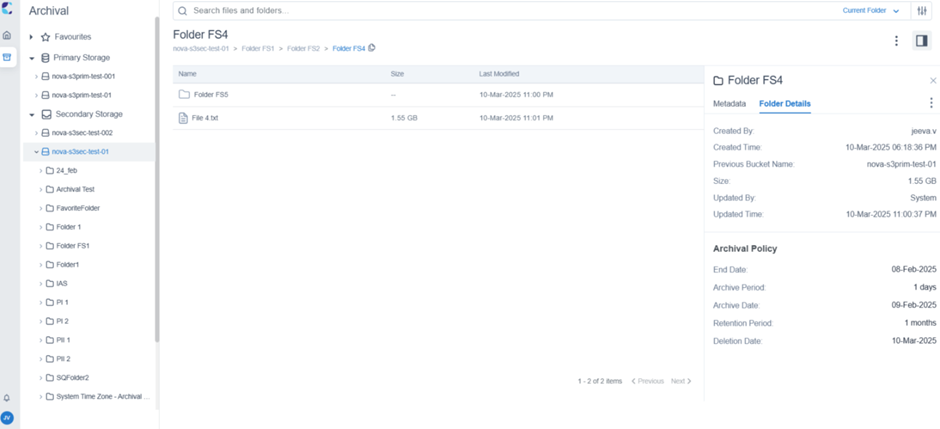
Previous bucket name metadata key and value of archived folder
This metadata key will be available for files and folders that have been moved or archived to secondary storage. You can also restore files if you need to move them to high-performance primary storage.
Deletion Date
Using the provided End Date and Retention Period, LDAS calculates the Deletion Date of a folder as 'End Date + Retention Period.' After the Deletion Date, the folder and all its child folders will be permanently deleted from secondary storage and thus removed from LDAS in the next retention scheduler run after the deletion date.
For each instance of LDAS, there is a configured frequency at which folders and their child folders are deleted from secondary storage if their Deletion Date has passed before this frequency.
To restrict archival actions and prevent any edits, a file or folder can be placed on legal hold, which also applies to all its associated child folders and files until the legal hold is lifted.
NOTEManual deletion of files and folders in Archival is not supported. To expedite the removal of a folder from storage, reduce its Archival and Retention Periods in the archival policy.
Example
If a folder has an 'End Date' of June 23, 2023, an 'Archival Period' of 1 month, and a 'Retention Period' of 2 months, it will be deleted from secondary storage during the fixed frequency run that occurs after the completion of the Deletion Date, which is August 22, 2023.
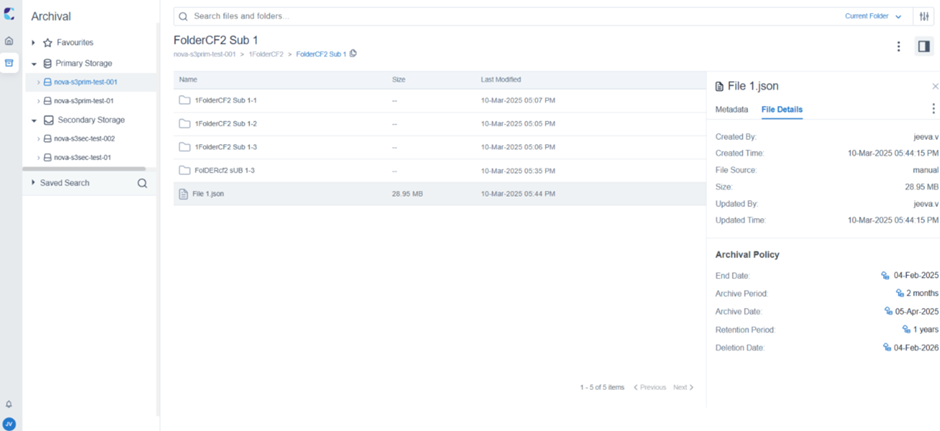
End date and Retention Period set for a folder
Restore Period
Once a folder moves to secondary storage, it becomes non-editable. However, if you need to edit values, upload files to an archived folder or if you need to frequently access the folders or files, you can restore it to primary storage using the restore option.
When you restore a folder, all its child folders will move back to primary storage, making them editable again. However, the existing End Date and Archival Period cannot be modified for the restored folder or files.
For restored files, the Retention period and Restoration period cannot be edited on the properties page.
Restoration End Date
Using the provided Restore Period, LDAS calculates the Restoration End Date as 'Date of Restoration + Restore Period.' The Date of Restoration is the date when the folder is restored. Once the Restoration End Date is reached, the folder will be moved back to secondary storage from primary storage. However, if the folder has already reached its Deletion Date, it will be permanently deleted from the system. When the Restoration End Date is greater than that of its deletion date, the folder gets deleted according to its Restoration End Date.
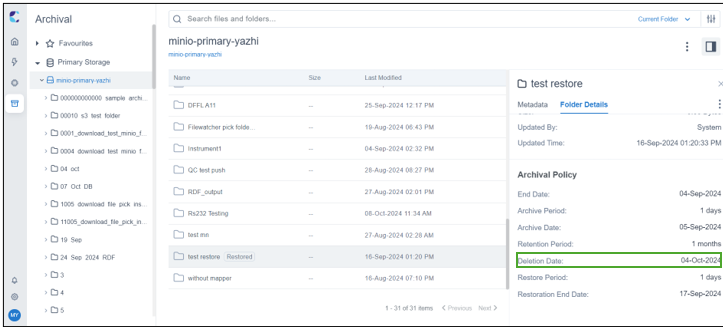
Deletion date calculated based on the provided retention period and end date
Criteria for Valid Archival Policy
| Field Name | Validations | Mandatory Field | |
|---|---|---|---|
| Within Same Folder | Based on Related Folder | ||
| End Date (ED) | None | None | No |
| Archival Date (AD) | Must be greater than the ED and lesser than the DD. | Must be lesser than the Parent AD and greater than the Child AD. | Yes, if the End Date is provided. |
| Deletion Date (DD) | Must be greater than the AD. | Must be lesser than the Parent DD and greater than Child DD. | Yes, if the End Date and Archival Date is provided. |
| Restoration End Date (RED) | May or may not exceed the Folder’s DD | May or may not exceed the Parent DD and Child DD | Yes, if restoring. |
Restrictions for Restoration
When you are scheduling a folder for restoration, other person cannot simultaneously schedule restoration for that folder or any folder within its hierarchy, whether above or below it.
In these cases, the restore action for the folder will be locked for other person until the folder either moves back to primary storage or the action is cancelled.
To restrict archival actions and prevent any edits, a file or folder can be placed on legal hold, which also applies to all its associated child folders and files until the legal hold is lifted.
Updated 7 months ago