
Admin Guide
Access Control
To access the instrument module, users with instrument subscription must have one of the roles defined within LDAS, based on the level of access required.
Access Control - Instrument Roles
| Permissions | Roles | ||||
|---|---|---|---|---|---|
| Instrument Super User | Instrument User | Reviewer | Instrument Viewer | Instrument Metadata Manager | |
| Manage Instrument Type | ✔ | ||||
| View Instrument | ✔ | ✔ | ✔ | ✔ | ✔ |
| Manage Instrument | ✔ | ||||
| Download Parser | ✔ | ✔ | ✔ | ✔ | |
| Download Mapper | ✔ | ✔ | ✔ | ✔ | |
| Deactivate Instrument | ✔ | ||||
| Manage Processor | ✔ | ||||
| View Activities | ✔ | ✔ | ✔ | ✔ | ✔ |
| Download Activities Files | ✔ | ✔ | ✔ | ✔ | |
| Re-run | ✔ | ✔ | |||
| Duplicate Check | ✔ | ✔ | |||
| Result Review | ✔ | ||||
| Tag Metadata | ✔ | ||||
Roles and Permission
Instrument Type
Create Instrument Type
- You can categorize the instruments required for various laboratory operations into different Instrument Types (e.g., Centrifuges, Agitators, Microscopes, etc.).
- Within each instrument type, you can create and manage the specific instruments needed for these operations.
- An instrument Type can be created by providing the necessary data in the Name field on the Create Instrument type page
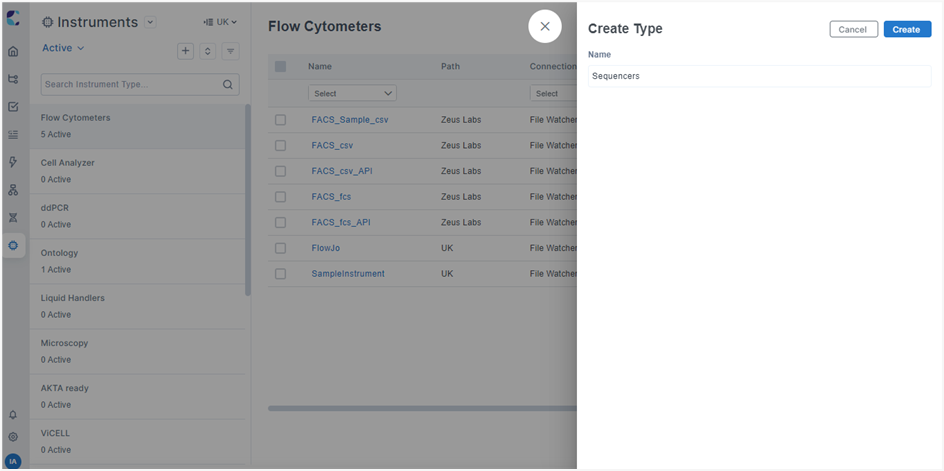
Create Instrument Type
NOTEEach Instrument Type Name must be unique—duplicate names are not allowed. Instrument Types are not linked to any specific organizational path, meaning all users, regardless of their roles or permissions, will see the full list of Instrument Type names in the left panel. However, users can view Instruments within the types only when they have specific access to it.
Manage Instrument Types:
On the Instrument page, you can manage instrument types efficiently:
- View: See all instrument types along with the count of active instruments under each. Click on a type to view its associated instruments and toggle between Active and Inactive filters.
- Search: Find specific instrument types by entering their name in the search field or filtering based on the instruments they include.
- Sort: Instrument types are sorted by default from Recent to Old. You can also sort by Old to Recent, A to Z, or Z to A.
- Filter: By default, no filter is applied. Click the filter icon, apply necessary filters in Instrument type and click “Apply Filter”. Selected instrument types alone will be available in the left panel.
- Edit: Click on an instrument type and select “Edit Type” to update its name or deactivate it if it's no longer in use.
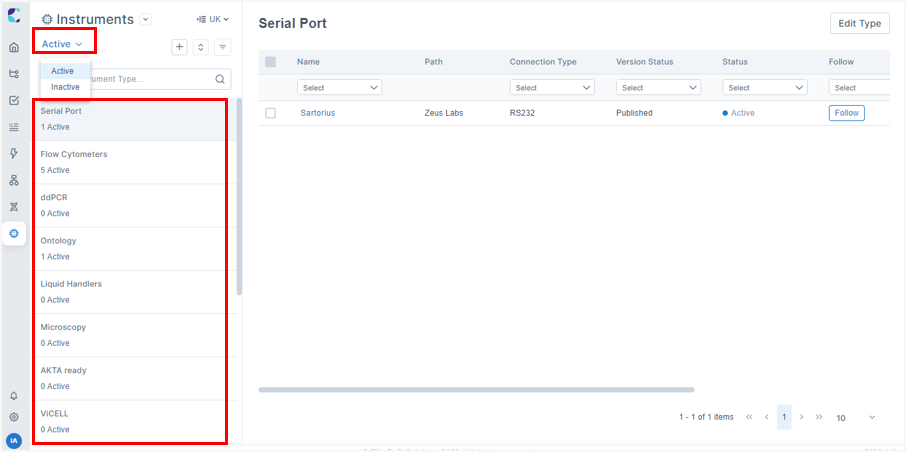
Instrument Type list
NOTEWhile inactivating Instrument types, status of Instruments created within the Instrument type remain unaffected.
Instruments
Instrument configuration
To create an instrument under an instrument type, select “Create Instrument” option by clicking icon in the Instrument page.
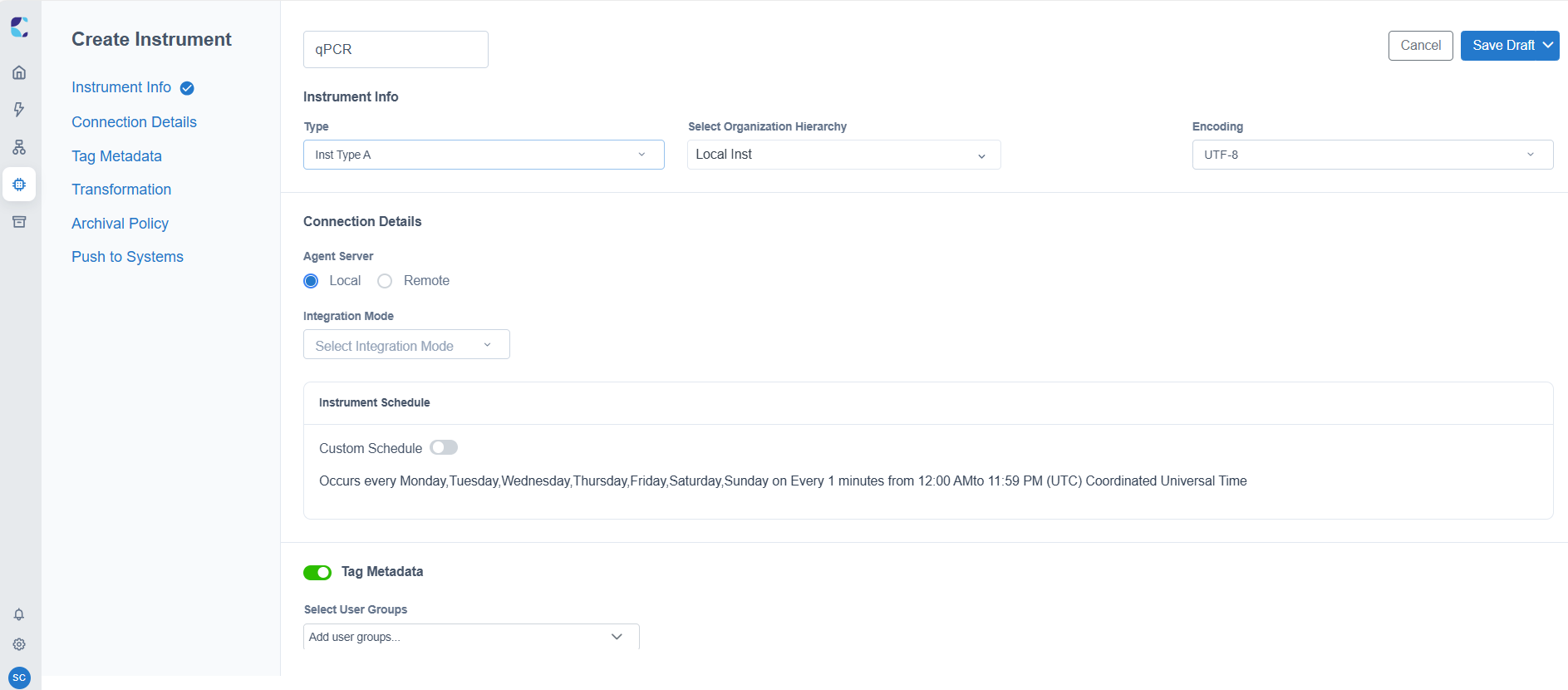
Create Instrument Page
Enter an appropriate Instrument name in the respective field.
The Create Instrument page has 5 sections, namely:
NoteInstruments can either be saved as draft or published.
Instrument info
This section captures key attributes required to register an instrument in LDAS
- Instrument Type: Select the appropriate instrument type that best represents the instrument’s function or data characteristics. This helps organize instruments for easier management and configuration.
- Organization Path: Select the hierarchical location within your lab or organization where the instrument belongs. This ensures proper access control and scheduling inheritance.
- Encoding: Specify the encoding type to maintain data integrity during processing. This field becomes mandatory when push to systems is enabled, ensuring that data remains intact and unaltered during transmission to systems like ELNs, LIMS, or data lakes.
Connection Details
Connection details section captures how exactly the instrument created in LDAS can connect to different instruments/ applications in laboratory and acquire data, with a wide range of integration modes in place.
Agent Server
Agent Server serves as the location for executing the flows. Two Agent Servers are available – depending on your use cases, any of the below options can be chosen.
When the Local option is selected, the flow runs within the site where the application is located. Conversely, opting for the Remote setting enables users to choose a server for the execution of the flow.
Remote can be chosen when users can connect to remote servers for file transfers, data processing, and applications hosted on the server without physically being in the same location as the server.
Remote Agent Server can be chosen by the registered endpoints.
Note:Once an instrument is configured as a remote server and successfully published, the instruments will be monitored.
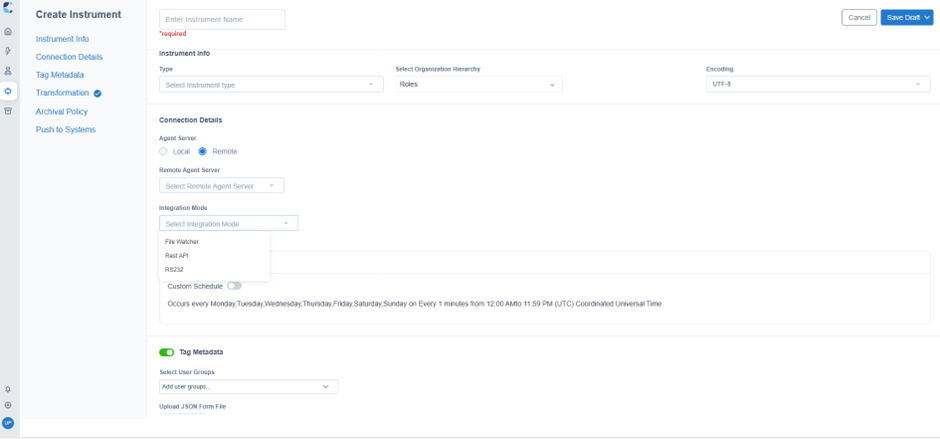
Create Instrument page with Remote Agent server enabled
Note:The Remote Agent Server supports multiple connection modes, including File Watcher, REST API, and RS-232. The File Watcher mode is applicable only when the server's file location type is set to either Local Drive or SFTP.
Real-Time
Use this option to acquire the data from the Instrument as real time. If Real-Time is set as yes, the below configuration will be set.
- Return response will be set as ‘No’ by default.
- Transformation files cannot be uploaded.
- External system push will be disabled.
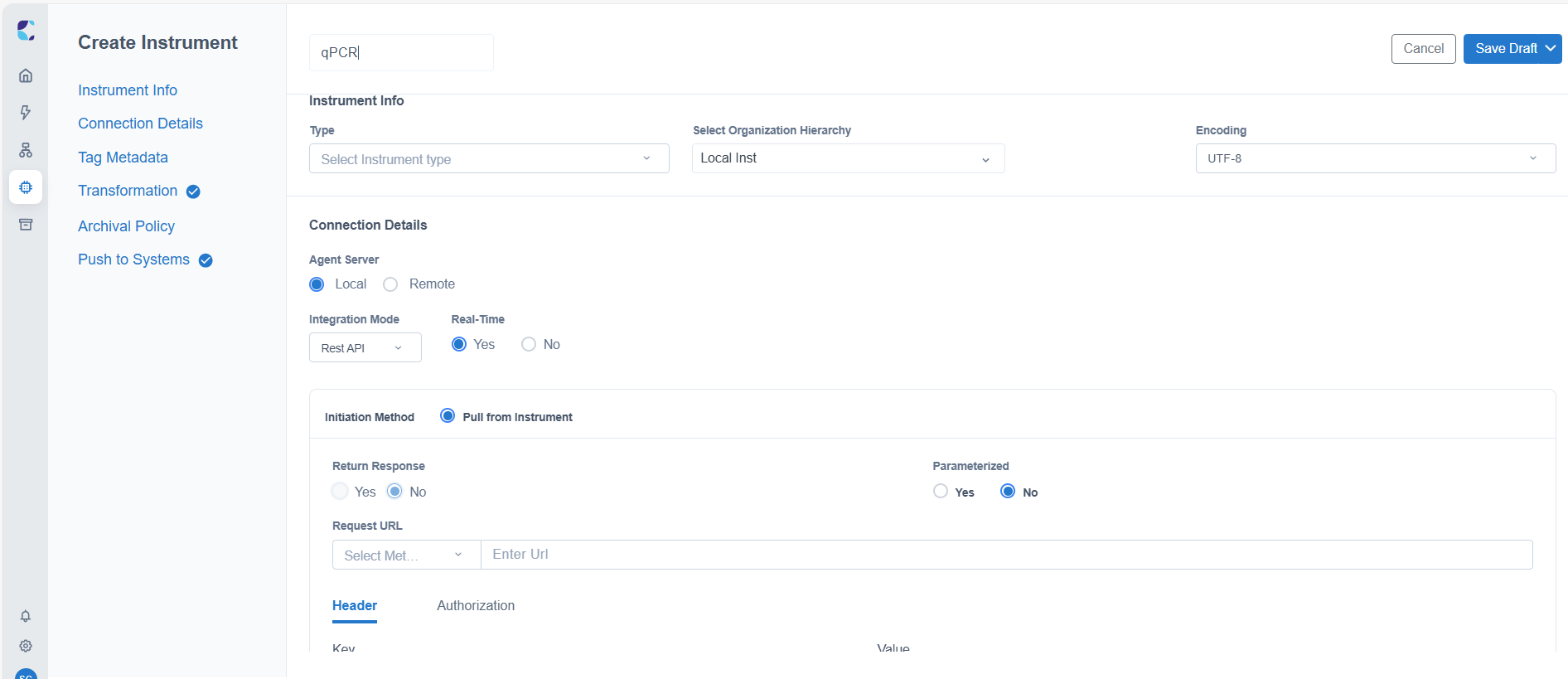
Real-Time response configuration mode
Note:For real time response, Supporting Connection mode is REST API, RS-232, OPCUA, OPCHDA.
Integration Modes
Following are the Integration modes available:
File watcher is used when instrument output is in the form of files/folder
DB Query is used when instrument output is stored in Database
Rest API allows extraction of data from Instruments using Rest API
File Watcher
Two Initiation methods are available – depending on your use cases, any of the below options can be chosen.
- Push to Folder- For instruments that store output files in a specific location, you can configure the Push to Folder method to automatically monitor the directory for instrument files at scheduled intervals.
- Push over API- Apart from retrieving instrument files based on location, an agent can be used to export the file from the instrument and trigger an activity in LDAS using the “Push over API” method.
Push to Folder
You can set a frequency (Instrument Schedule) based on which LDAS will monitor the specified location and pick the instrument files.
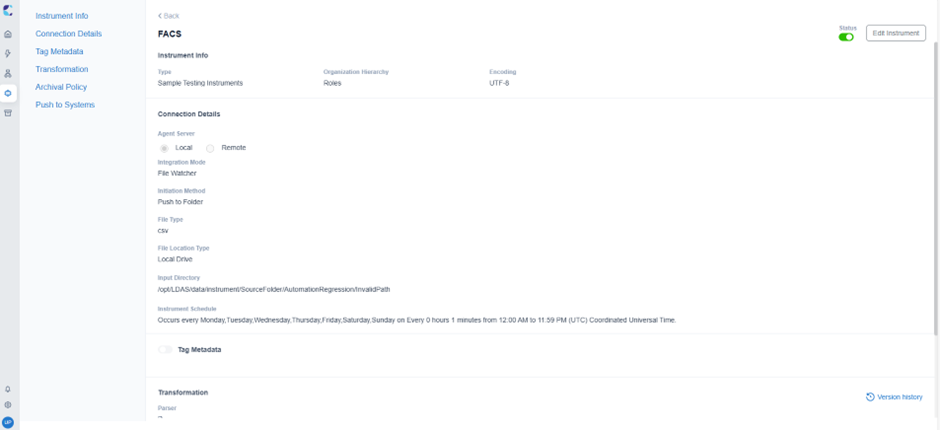
Example configuration: File Watcher - Push to Folder
Push over API
You can download the reference document to get inputs on initiating the API call after publishing the instrument.
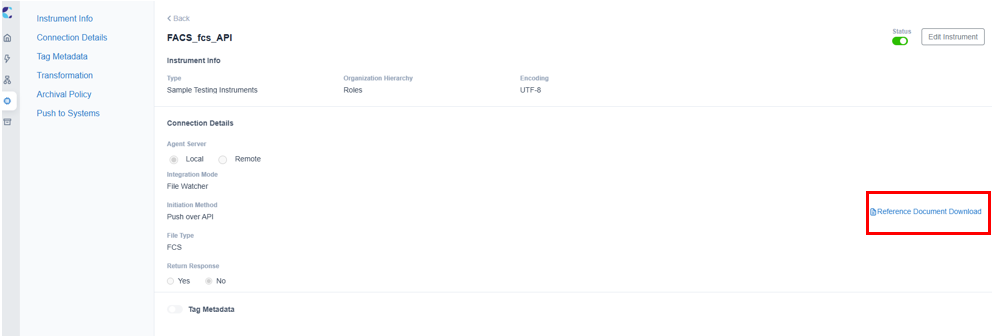
Example configuration: File watcher - Push over API
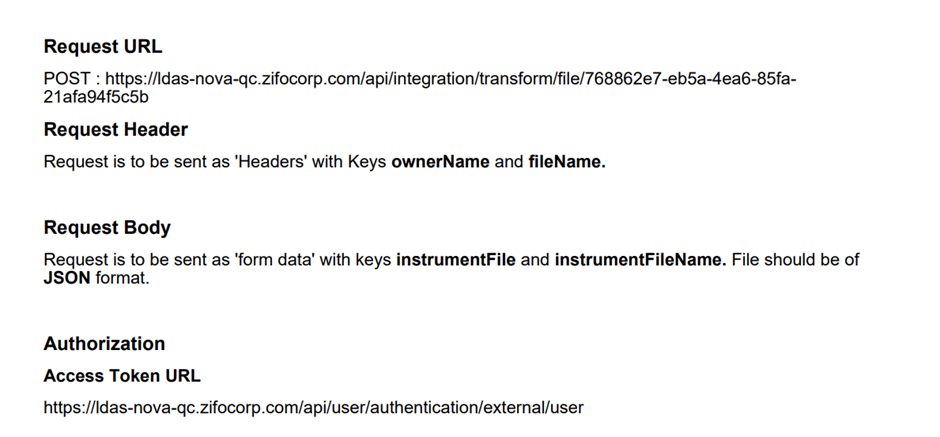
Sample Reference Document
Note:Due to the limitation of processing files larger than 10MB using the Push over API method, it is recommended to use the File Watcher – Push to Folder mode instead. This approach allows the system to handle larger files more efficiently.
File Watcher Configuration:
| Integration Mode | Initiation Method | Corresponding Fields |
|---|---|---|
| File Watcher | Push to Folder |
|
| Push over API |
|
Database Query
Two Initiation methods are available under DB Query. Depending on your use cases, any of the below options can be chosen.
Scheduled Pull
Using scheduled pull method, Instrument data can be acquired from the database synchronously at a scheduled time frame based on the Instrument schedule
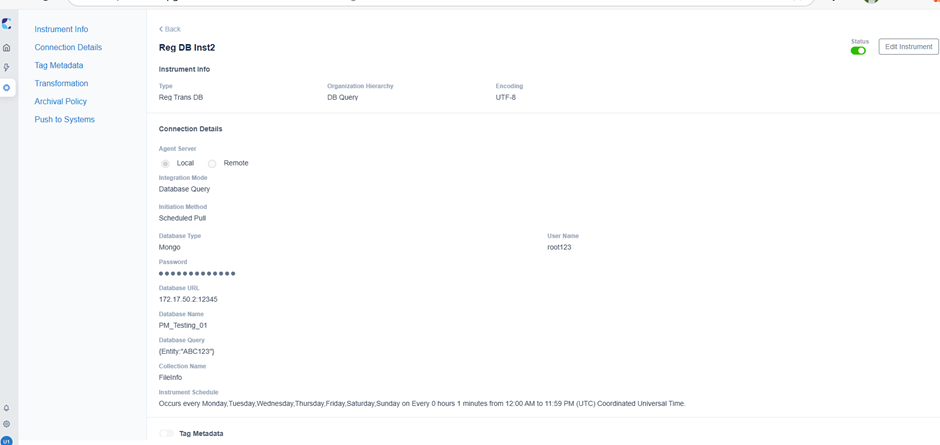
Example configuration – Database query (scheduled pull)
Pull from Instrument
This method is used to acquire Instrument data dynamically from a Database. After publishing the instrument, you can download the reference document to get inputs on initiating the API call.
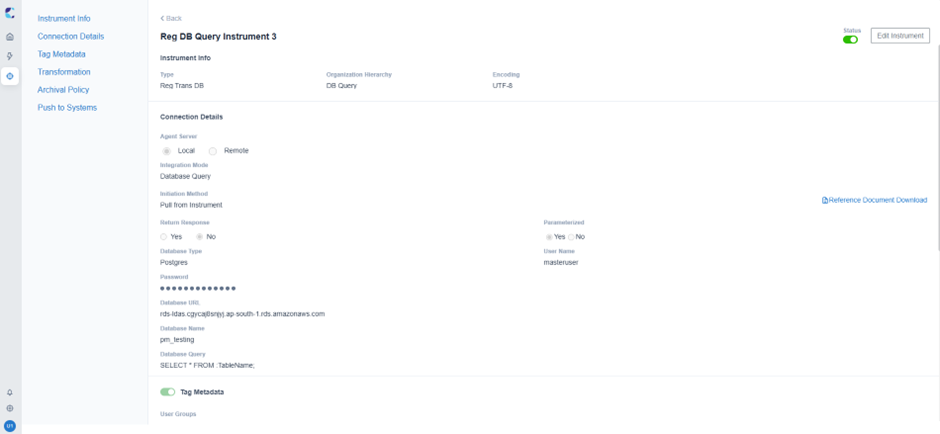
Example configuration – Database query (Pull from Instrument)
DB Query Configuration:
| Integration Mode | Initiation Method | Corresponding Fields |
|---|---|---|
| DB Query | Scheduled Pull |
Database Type Username Password Database URL Database Name Collection Name (Applicable for Mongo DB) Database Query Instrument Schedule |
| Pull from Instrument |
Database Type Username Password Database URL Database Name Collection Name (Applicable for Mongo DB) Database Query Return Response (Yes/No) Parameterized (Yes/No) |
Rest API
In a REST API, data is extracted from instruments using the pull from instrument method, where the instrument either provides the data directly in JSON format or returns the path to a file where the data is stored. This method enables dynamic acquisition of instrument data through an API call, with request details configured to allow parameterization and optional return responses based on the integration requirements.
To access instrument data via REST API, one of the following authentication mechanisms can be chosen
- No Auth if authentication is not required.
- Basic Auth (username and password)
- OAuth (access tokens for flexible access).
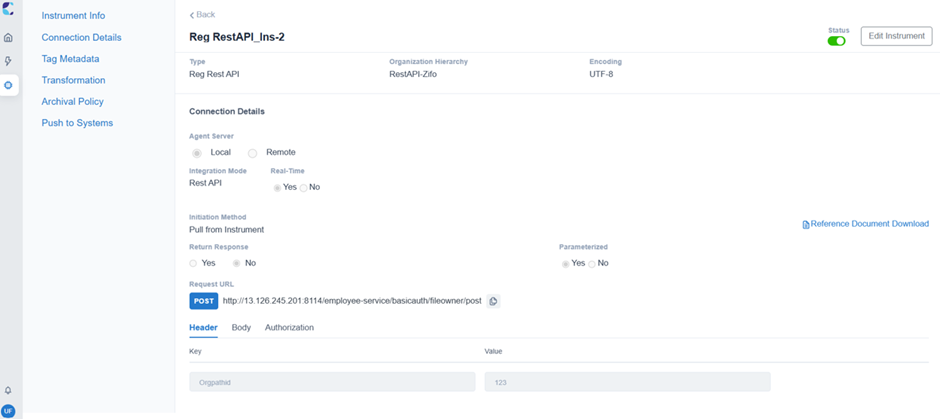
Example configuration: Rest API, Pull from Instrument
NOTE“Parameterized” option is applicable only for POST method. So, it is advisable not to enable Parameterized option when GET method is opted.
Rest API Configuration:
| Integration Mode | Initiation Method | Corresponding Fields |
|---|---|---|
| Rest API | Pull from Instrument |
|
RS232
When connecting with instruments that use a legacy serial communication method such as RS232 this integration method can be used. Pull from instrument method is used to acquire data dynamically in this case. You will have to provide the configuration details to connect to the instrument or instrument agent. You can download the reference document and initiate the API call.
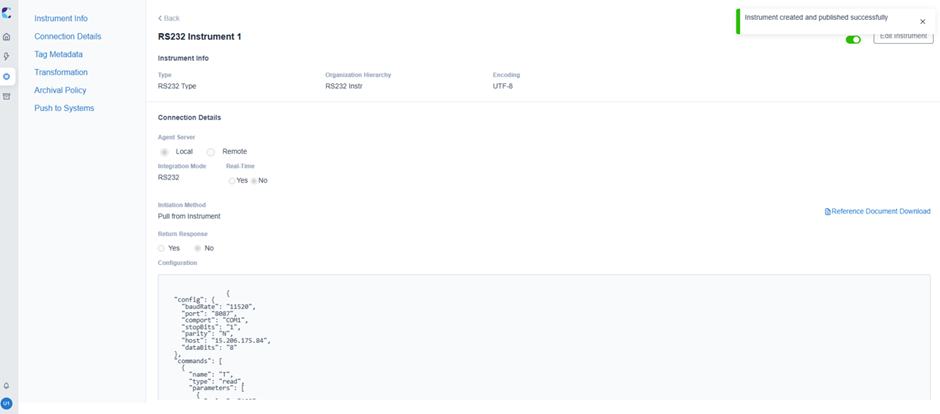
Example configuration: RS232, Pull from Instrument
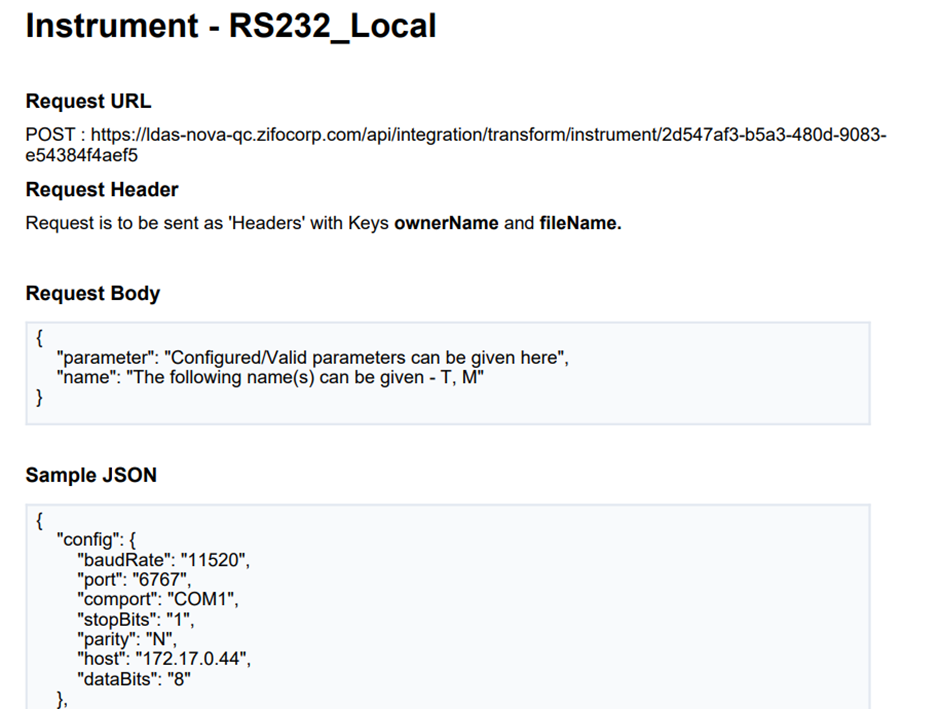
Sample Reference Document
OPCUA
When integrating with instruments that support the OPC UA protocol, this method can be used to acquire structured and real-time data securely. Pull from instrument method is used to acquire data dynamically in this case. Configuration details have to be provided to connect to the Instrument or Instrument agent. You can download the reference document to get inputs on initiating the API call after publishing the instrument.
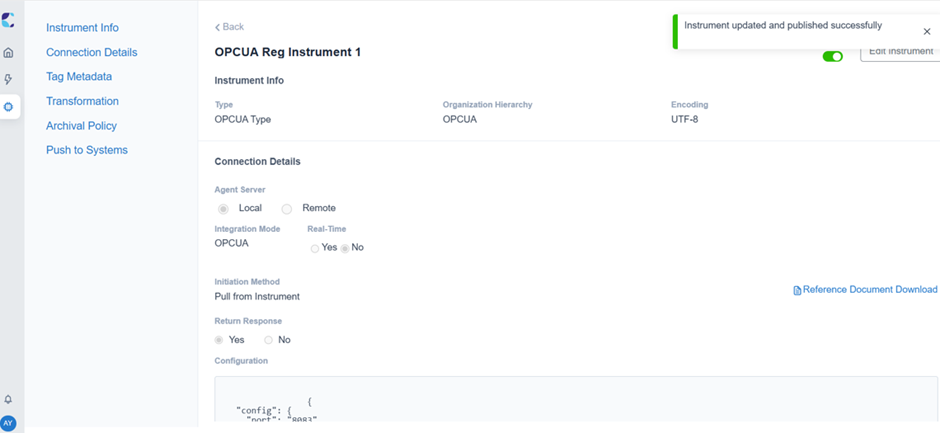
Example configuration: OPCUA, Pull from Instrument
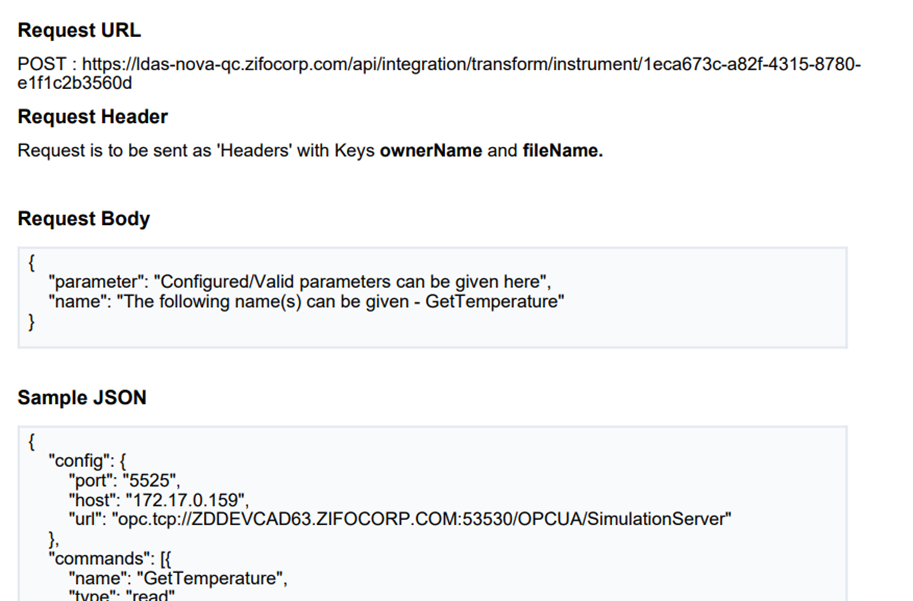
Sample Reference Document
OPCHDA
When accessing historical data from instruments or data historians that support the OPC HDA protocol, this integration method can be used. You can use this method to acquire historical instrument data from process control and automation systems. Pull from instrument method is used to acquire data dynamically. Configuration details have to be provided to connect to the Instrument or Instrument agent. You can download the reference document to get inputs on initiating the API call.
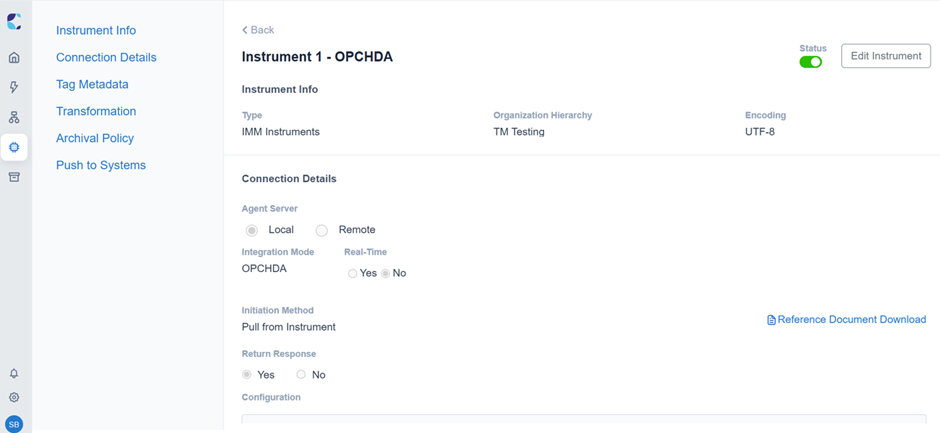
Example configuration: OPCHDA, Pull from Instrument
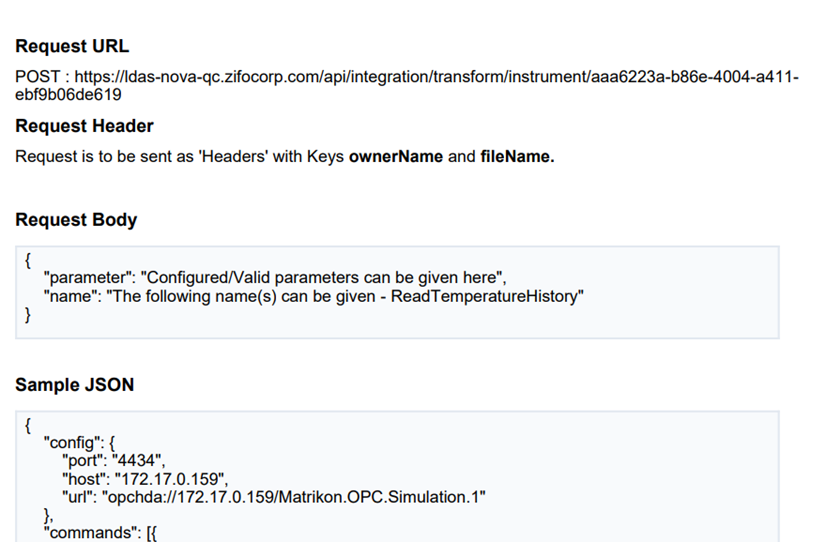
Sample Reference Document
Tag Metadata
Users can tag user-defined metadata in the activities page manually to the instrument data files or the parsed output files, enabling file searches based on the tagged metadata
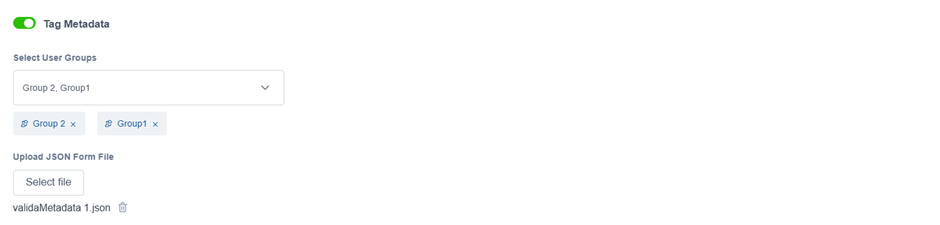
Example Tag Metadata configuration in create instrument page
- Enable or disable Tag Metadata with the help of toggle button . When enabled, users can tag metadata to files during the ‘Tag Metadata’ stage of the activity. When disabled, this stage will not be available in the activities.
- Select the user groups for which the 'Tag Metadata' stage should be enabled, allowing the users to perform metadata tagging.
- Upload a JSON file containing the required metadata keys. While the activity is in progress, users can tag corresponding values to these keys as part of the Tag Metadata stage.
JSON Form File
A JSON Form file is a structured text document that utilizes the JSON (JavaScript Object Notation) format to define the structure and content of a form. This form is generated based on the metadata that needs to be collected from the user. When metadata tagging is required, the JSON Form will be displayed on the activities page.
NOTE:The form will be dynamically rendered based on the structure defined in the uploaded JSON configuration, which specifies the required metadata keys and is also validated against the metadata management
Instrument Schedule
Under Instrument Schedule section, you can set up the frequency in which LDAS should acquire data from instrument. This is mainly used for scheduler-based integrations like File Watcher – Push to Folder and DB Query – Scheduled Pull, enabling automated and timely data acquisition.

Default instrument schedule – Inherited from organization path.
By default, the scheduler configuration is inherited from the organization settings, however you can customize the schedule at each instrument level.
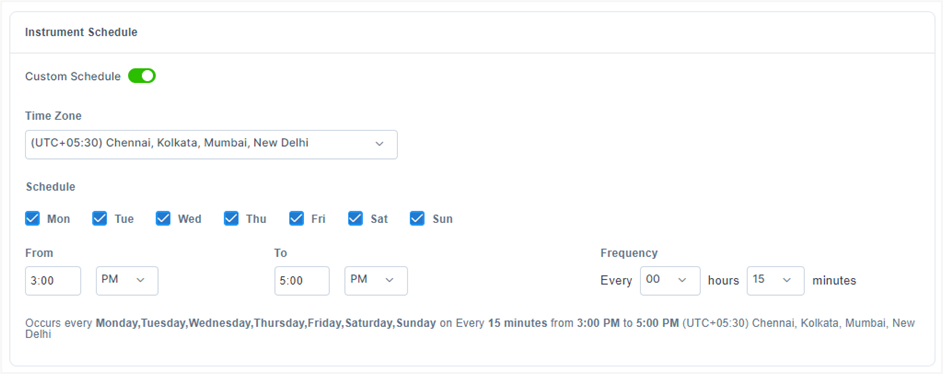
Sample Custom instrument schedule
NOTEInstrument Schedule does not handle Daylight Saving Time (DST).
Processor is a component within the Agent Server that starts processing the collected data. If the processor is not running, data will not be processed. Each instrument has a processor that can be started or stopped manually or based on its schedule.
The processor status reflects whether it's Running, Stopped, or Failed—with logs available for download in case of failure. Failed processors are automatically restarted within a configured time window at a specified frequency, helping ensure minimal manual intervention and reducing data processing downtime due to processor failures. Additionally, when the processor status of an instrument is automatically changed by the system, users will receive an email notification. You can manage processor actions directly from the Instruments page.
NOTEThe processor status is shown only for instruments that is configured based on instrument scheduler (i.e., For Instrument with Integration mode: File watcher-Push to Folder, DB Query-Scheduled Pull).
Transformation
After receiving data from the instrument, the data files are transformed into a standardized JSON format to facilitate further processing by a data pipeline or integration with external systems. The files are also enriched with metadata extracted from the instrument file name or path (such as site and sample name) and from the file contents (such as instrument model and injection ID).
Parser
Parser is a piece of code designed to extract and transform instrument data into a structured, standardized JSON format. If there are any custom parsing requirements or additional logic specific to your instrument data, they can be incorporated directly into the parser code. You can upload your parser in the Parser section. Please ensure the file is in ZIP format. All parsers must be developed in accordance with the Parser Guidelines.

Transformation section, with parser file uploaded
Mapper
Mapper is a tool used to align, integrate, and map concepts, properties, and relationships across different ontologies. It plays a key role in transforming parsed instrument data into a semantically rich RDF format. The mapper file is generated by linking the ontology file with the instrument data file. This mapping guides the transformation of JSON output from the parser into RDF. You can upload your mapper in the Mapper section. Please ensure the file is in .ttl (Turtle) format.

Transformation section, with mapper file upload
NOTEMapper is applicable and mandatory when instrument working mode is set as “RDF”.
You can also view the version history of the uploaded parser/ mapper file.

Parser and mapper file version history page
NOTE
- Instruments can be configured with or without a Parser. In cases where parser is not used, Instrument raw data would be read and pushed to archive locations, without any processing.
- Version of the parser will be increased by 0.1 in the draft version of Instrument. Once the instrument is published, version number gets rounded off to the nearest whole number.
Archival Policy
Raw data from the instrument along with the parsed standardized data generated by the LDAS instrument module, can be archived in cloud storage
Files can be archived either internally within LDAS (Internal Archive) or in any external archives (External Archive) based on the project specific requirements.
Internal archive
- You can select the specific bucket where you want to archive the instrument files from the registered list of buckets.(Refer Bucket Registration for more info on how to register buckets in LDAS)
- Provide Input File Path and Output File Path where the respective Instrument files need to be pushed. User can configure either input file path, output file path or both together according to the use case.
NOTE:In Internal Archive, Output File Path option won’t be displayed if the parser hasn’t been uploaded.
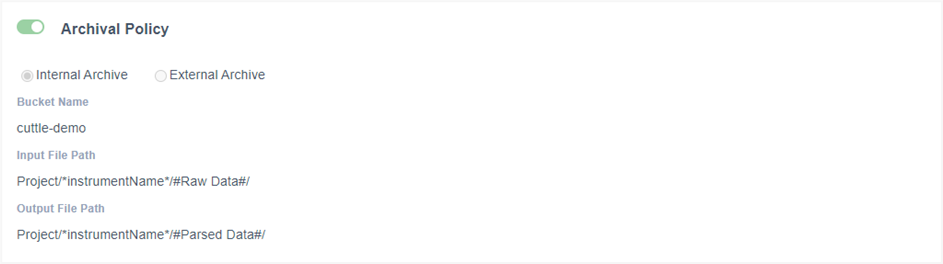
Internal archive configuration
NOTEProviding file paths for Archival:
- Use “#” to define static values for which folders will be created newly and files would be archived in the given path. File path cannot exceed 246 characters, and the following special characters are restricted.. / \ % :E.g., #Raw Data#, #Parsed Data#.
- Use "*" to reference environmental variables—like instrumentName, instrumentType, or orgPath—which are automatically replaced with actual values from the instrument configuration during file path creation.
- You can type ahead and get the metadata keys. If the metadata key is selected, the path will be created based on the corresponding metadata values in the metadata file. The metadata should be present in metadata management E.g., Assay Name, Project
External Archive
To store a large file, you can use an external archive instead of navigating through our archival module. Select "S3" as the "Storage Service" and provide the following details:
- Bucket Name
- Region
- IAM User (Yes/No)
- Prefix
- Access Key (Applicable when “IAM User” = “No”)
- Secret Key (Applicable when “IAM User” = “No”)
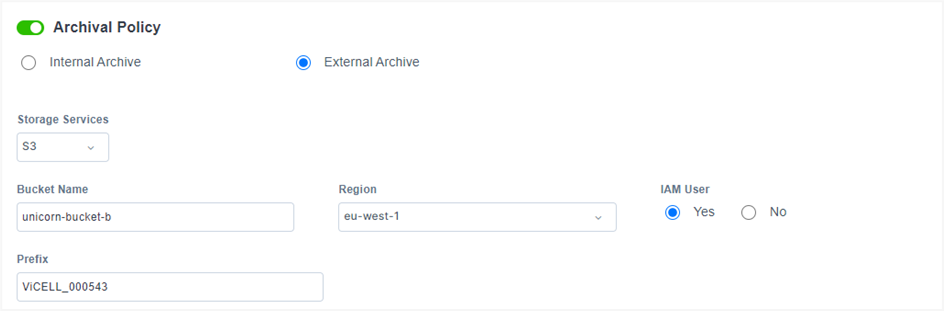
External archive configuration
NOTE:The External Archive option is only available for the File Watcher Local Drive and SFTP modes when the agent server is set to Local.
Push to Systems
To enable data integration and centralized analysis, instrument data can be pushed to external systems such as LIMS, ELNs, data warehouses, or other designated endpoints, as well as to the LDAS Orchestration module using the Push to Systems feature. Before initiating a data push, the target system must be registered as an endpoint within LDAS. You can select one or more endpoints, allowing the parsed results to be sent to multiple external systems simultaneously. The parser generates a .result file in JSON format containing the output data. You may specify a custom name for the result file based on the selected endpoint, but it must exactly match the name of the .result file. For details on configuring endpoints, refer to the Endpoints section.
Push to Workflow
To configure Push to Workflow, you must have a license to “Orchestration” module. “Push to workflow” will be displayed as default under the system dropdown list with other created endpoints for the external systems. You can integrate with the Orchestration module, where actions such as launching workflows or completing specific tasks of launched workflows can be performed through Instrument's activities. Additionally, instrument data can be pushed as attachments, either as files or links if the files are archived internally, and experiment or sample details or any other data extracted from instrument files can also be set as workflow parameters . These actions can be done based on the configuration specified in the parser.
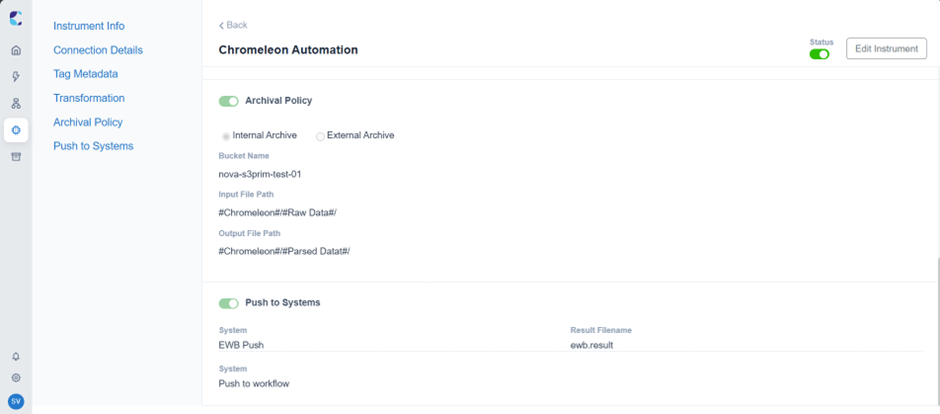
Example Push to Systems configuration
NOTE:Parser is required when Push to Systems is enabled, as the results will be generated by the parser.
Actions from Instruments List
Each instrument comes with a set of contextual actions accessible via the triple-dot menu or by right-clicking directly on the instrument. These actions allow you to:
- View Instrument
- Edit Instrument
- Activate/ Deactivate Instrument
- Start/ Stop Processor
- Follow/Unfollow
- Download Parser/Mapper
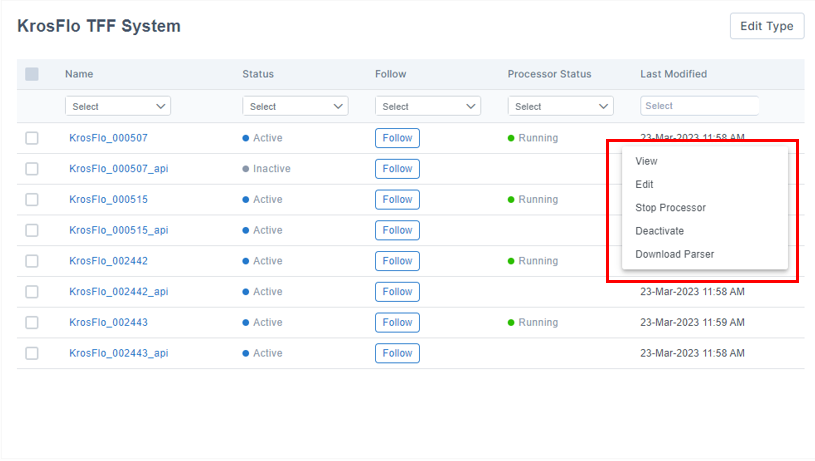
Actions from view instrument list
Search and Sort Instruments
In the Instrument list page, you can search and filter Instruments based on all columns except “Path”, and sort the Instrument list based on “Name” or “Last Modified” columns.
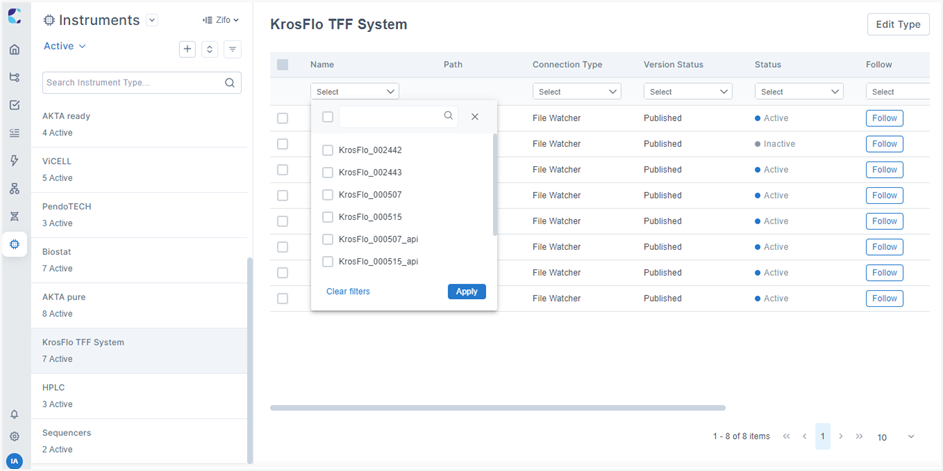
Sort, search, and filter instruments
View Instrument
Use this option to review the instrument’s configuration, including details such as connection settings, tag metadata configuration, transformation logic, archival policies, and push to systems setup. This view is read-only and does not allow modifications.
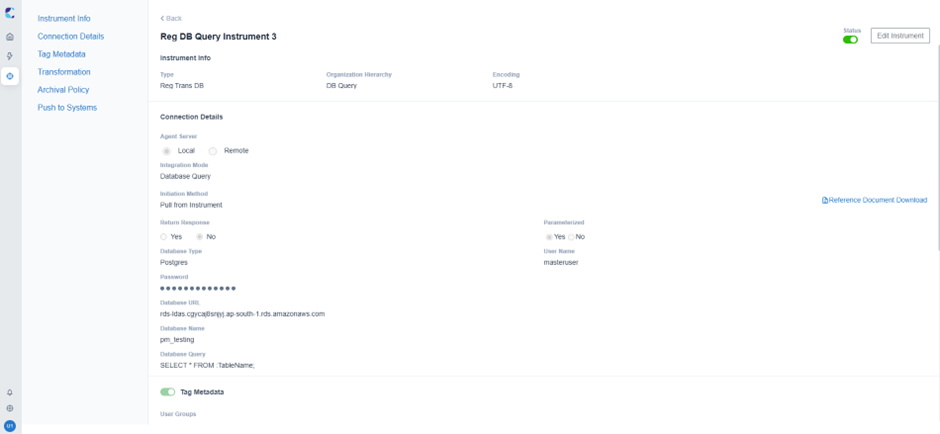
View Instrument Page
Edit Instrument
This option allows you to update the instrument configuration as needed. You can modify sections such as Instrument Info, Connection Details, Tag Metadata, Transformation Rules, Archival Policy, and Push to Systems settings to suit your requirements.
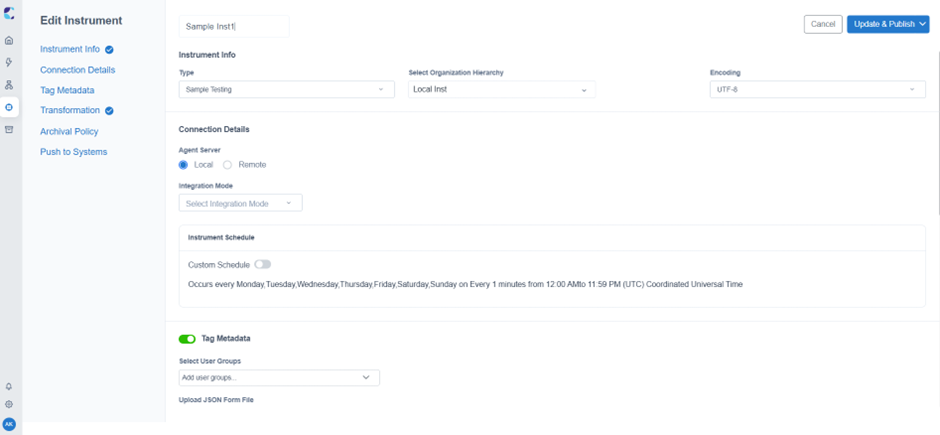
Edit Instrument Page
NOTEWhen Instrument is saved as Draft, all sections (Instrument Info, Connection Details, Tag Metadata, Transformation, Archival Policy, and Push to Systems) can be edited.
Once the instrument is published, you can make edits to the following fields if needed:
| Section | Description |
|---|---|
| Instrument Info | It includes Instrument Type, Organization Hierarchy under which the instrument is created and Encoding. For published Instruments, “Instrument Type” and “Organization Hierarchy” cannot be edited. Only “Encoding” can be edited. |
| Connection Details |
For published Instruments, the “Integration Mode” and “Initiation Method” cannot be modified. In File watcher mode, you cannot modify the file location. Database type is non-editable in DB query mode. You can update all the fields under other integration modes – Rest API, RS232, OPCUA, OPCHDA. Based on the initiation method, you can adjust the Instrument schedule based on business needs. |
| Tag Metadata |
For published Instruments, ‘Tag Metadata’ section can be edited and can be switched from enable to disable and vice versa. For Tag Metadata, User Group and JSON Form file can be edited. |
| Transformation | You can update the latest version of parser/mapper files based on business requirement. |
| Archival Policy |
|
| Push to Systems | For published instruments, the ‘Push to Systems’ can be enabled or disabled. If enabled, new endpoints can be added. |
NOTE
- On the instrument page, the file type should not be changed from Folder type to any other type, and vice versa. Instead, you should deactivate the existing instrument and create a new one.
- Once the files have been uploaded and Instrument has been published, Parser and Mapper cannot be removed – only a new version can be uploaded and published.
Activate/ Deactivate Instrument
Use this option to permanently enable or disable an instrument. "Activate" makes a previously deactivated instrument available for processing. "Deactivate" disables the instrument, stopping all associated activities.
When an instrument is deactivated, its processor is automatically stopped, and no activities can be triggered.
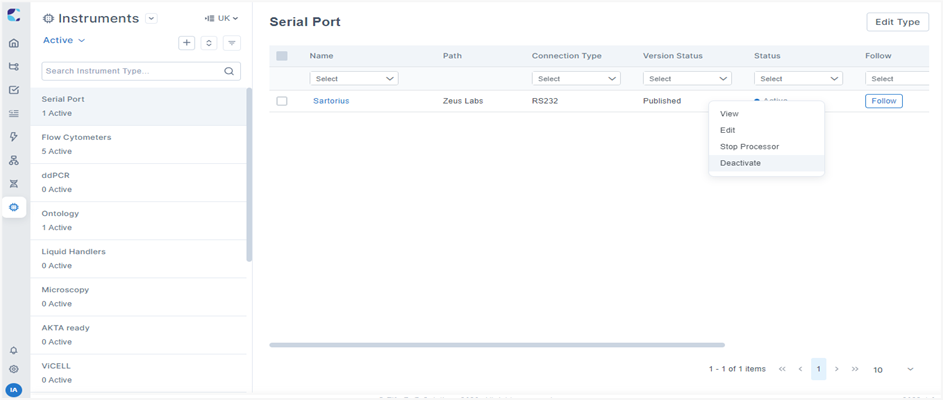
Deactivate an instrument
Start/ Stop Processor
Use this option to temporarily control the instrument’s data processing. "Start Processor" resumes data processing for a published instrument. "Stop Processor" pauses data processing without deactivating the instrument. Activities cannot be triggered while the processor is stopped, even if the instrument is active.
Follow / Unfollow Instrument
You can "Follow" or "Unfollow" instruments. If you follow an instrument, you will receive notifications whenever any changes are made to its configuration.
Bulk Action
You can make changes to multiple Instruments at a time in a batch operation, instead of doing it separately for each of them. Select necessary Instruments and perform following actions in bulk:
- Follow/ Unfollow Instrument
- Activate/ Deactivate Instrument
- Start/ Stop Processor (This is applicable only to Active Instruments)
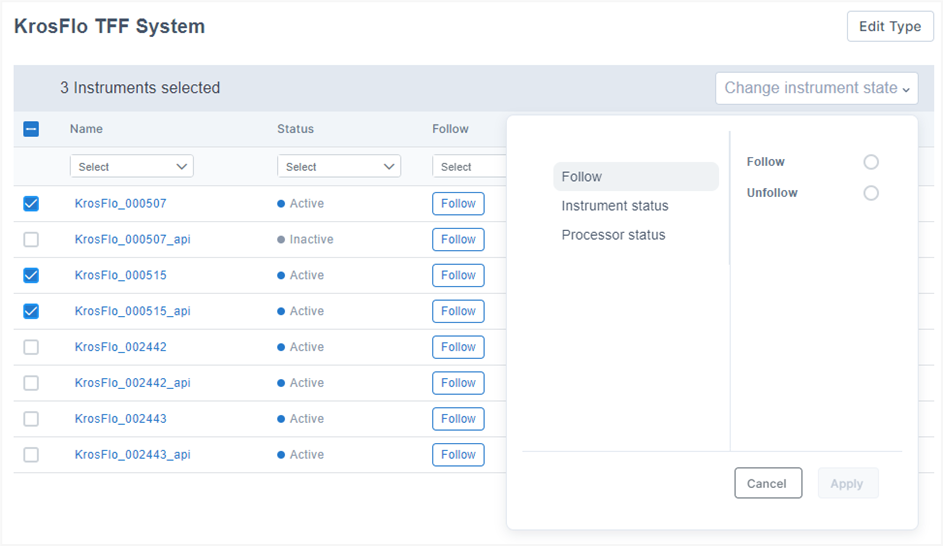
Perform bulk action
NOTE
- For inactive instruments, the processor status will by default be stopped.
- In bulk action, when both active and inactive instruments are selected and the processor status is updated as 'Start', the change will only be applied for the active instruments.
Troubleshooting
- When you create and publish an Instrument in File watcher integration mode with an invalid directory, the processor status will fail. After updating the Instrument to reflect the active directory, the processor will be in a "Stopped" state. You must manually start the processor for it to move to the "Running" state, even if it is within the scheduled time frame.
- You can download the activity log by clicking the triple-dot menu on the activities page. It contains a record of events that occur in Activities. Download and use the file to troubleshoot problems in the solution. Additionally, you can also download input and output files.
- When the server is down, an unexpected error will be displayed. Check if LDAS Agent Server is running and restart it if necessary.
| Stage | Troubleshoot Guidelines |
|---|---|
| Parse Data |
|
| Archive |
|
| Push to Systems |
|
Updated 5 months ago